
Field-Level Security in Dataverse: Building Role-Based Permission Models That Scale

Dataverse field-level security and role-based access control dashboard

The Hidden Complexity of Dataverse Permission Models

Most Dataverse implementations begin with a straightforward role hierarchy: sales users get access to leads and opportunities, finance teams see accounts and invoices, support staff manage cases and contacts. But as your organization grows, the model breaks down. You accumulate teams with overlapping responsibilities, regions with different compliance requirements, and sensitive columns that only executives should see. The role count multiplies. Users end up in seven or eight roles just to get the right combination of privileges. Column-level security requests pile up with no clean way to grant access to one field without exposing others. This is where field-level security enters not as a bolt-on convenience, but as a structural necessity.

Understanding Dataverse Security Layers

Dataverse provides three distinct permission layers, and confusing their purposes is a common design mistake. Row-level security controls which records a user can view or modify. It operates at the record level and relies on ownership, team membership, or hierarchical queries over business unit relationships. Role-based privilege sets determine what actions a user can perform (create, read, update, delete, assign) and on which tables or attributes they can perform them. These are coarse-grained controls; a role grants update access to an entire table, not to specific columns within it. Field-level security fills the gap between these two layers. It restricts access to specific columns for users who hold particular security roles or field security profiles. A user might have full update access to an account record through their role privileges, but field-level security can prevent them from viewing or editing the account’s annual revenue or credit rating fields.

Understanding this hierarchy is crucial for design. Many organizations try to solve field-level problems by creating more roles or narrowing table privileges. The result is role bloat that becomes impossible to audit or maintain. Field-level security, by contrast, keeps the role structure lean while providing precise column-level control.

Designing Scalable Field-Level Security Profiles

The technical foundation of FLS in Dataverse is the field-level security profile. Each profile specifies which columns a user can read or write. Multiple profiles can be assigned to the same user, and they combine additively: if one profile grants read access to a column and another grants write access, the user can write. Profiles are assigned through user records, not through roles, which is a critical design distinction. A user’s role determines their overall table and action privileges. Their field-level security profiles refine that access to specific columns.

Effective field-level security design starts with an inventory of columns that require restricted access. Columns typically fall into tiers: public columns that everyone in the organization can see (account name, contact details), internal columns that only certain roles should access (cost structure, internal notes), and restricted columns that require executive-level or compliance-driven access (personal identifiers, audit flags, regulatory fields). Once you have this inventory, you design profiles that correspond to job functions or organizational units. Instead of a profile per user or role, create a smaller set of reusable profiles that can be applied broadly. For example, you might have a “Finance Manager” profile that grants access to cost and revenue columns, a “Support Specialist” profile that blocks access to pricing and margin data, and an “Executive” profile that includes all columns except those marked as not-for-distribution. Users then receive the profiles they need to do their jobs, often in combination.

Common Implementation Pitfalls and Performance Implications

Most field-level security failures stem from three mistakes. First, overpermissive profiles that grant access to columns without a clear business justification. A single broad profile defeats the purpose of FLS and creates audit risk. Second, inconsistently applied profiles: some users have field restrictions while others with similar roles do not, creating data access inconsistency that auditors and compliance teams discover during reviews. Third, forgetting that field-level security does not prevent access through APIs, mobile clients, or integrations. A user might be blocked from viewing a column in the web UI, but if your Power Automate flow or plug-in runs as that user, the flow can still read and modify the column. Restricting API-level access requires separate configuration in custom connectors and API permissions.

Performance implications are often overlooked. Field-level security adds overhead to queries, especially when many profiles are assigned to a user or when profiles access overlapping sets of columns on large tables. Microsoft’s telemetry shows measurable latency increases on tables with thousands of records and highly granular field-level security configurations. The impact is usually minor for interactive workloads but can become significant in batch operations or bulk imports. Test thoroughly with realistic data volumes before deploying complex FLS configurations to production.

Integration with Azure Active Directory and Role Mapping

In many organizations, field-level security profiles should map to Azure AD groups or job roles defined in your identity management system. If your organization maintains Azure AD groups for finance staff, support teams, and executives, you can automate field-level security profile assignment through Power Automate or Azure Logic Apps when users are provisioned or change roles. This prevents manual profile assignment from becoming a maintenance bottleneck. The automation also ensures that when a user moves to a different department, they gain access to the columns required for their new role and lose access to columns they no longer need.

Be cautious about assigning profiles in bulk based on role names. If an Azure AD group includes contractors or external partners in addition to full-time employees, those contractors inherit the field-level security profile along with everyone else. Audit your group memberships before automating profile assignment, and maintain a separate security group or naming convention for profiles that should apply only to internal staff.

Testing, Auditing, and Migration Strategies

Effective field-level security requires testing at both the feature level and the integration level. At the feature level, verify that users assigned to a profile cannot query, read, or update restricted columns, either through the UI or through API calls. Use test accounts assigned to each profile to validate access. At the integration level, test that your automated role mapping and profile assignment work correctly when users are added, removed, or moved between groups. A common failure point is assuming that removing a user from an Azure AD group automatically removes their field-level security profiles; depending on your automation, it may not. Build automated tests that validate both positive cases (users who should have access do) and negative cases (users who should not have access don’t).

Auditing field-level security requires capturing field access attempts, particularly for sensitive columns. Enable plug-in tracing for custom connectors and use built-in Power Platform security audit logs to review who accessed which columns and when. Tools like the Center of Excellence (CoE) starter kit include reports that surface inactive field-level security profiles, which can be candidates for removal.

If you are retrofitting field-level security into a mature system where users already have broad column access, plan a phased migration. Begin with read-only restrictions on the most sensitive columns: executives and finance staff can read certain fields, but no one can modify them outside of specific processes. Gradually restrict write access, and monitor user behavior to catch legitimate use cases that your initial FLS model did not account for. Communicate clearly with teams before restricting access so they understand the why and can flag business processes that would break under the new model.

Building for the Long Term

Field-level security in Dataverse is not a one-time implementation. As your organization evolves, columns that were once public may become sensitive, and sensitive columns may need broader access. Design your profiles to be maintainable: document which profiles are in use, which columns each profile restricts, and why those restrictions exist. Periodically review profiles against your current data governance policies and remove or consolidate profiles that have become redundant. Organizations that treat FLS as an afterthought find themselves managing dozens of overlapping profiles within a few years. Organizations that treat it as an intentional governance mechanism maintain clear, auditable permission models that survive organizational change.

DynArchitect helps organizations design and implement scalable enterprise technology solutions, including Dataverse governance, security architecture, and role-based access control strategies that grow with your business.

#DataverseSecurity #FieldLevelSecurity #DataverseGovernance #PowerPlatformSecurity #RoleBasedAccessControl #DataversePermissions #CloudArchitecture

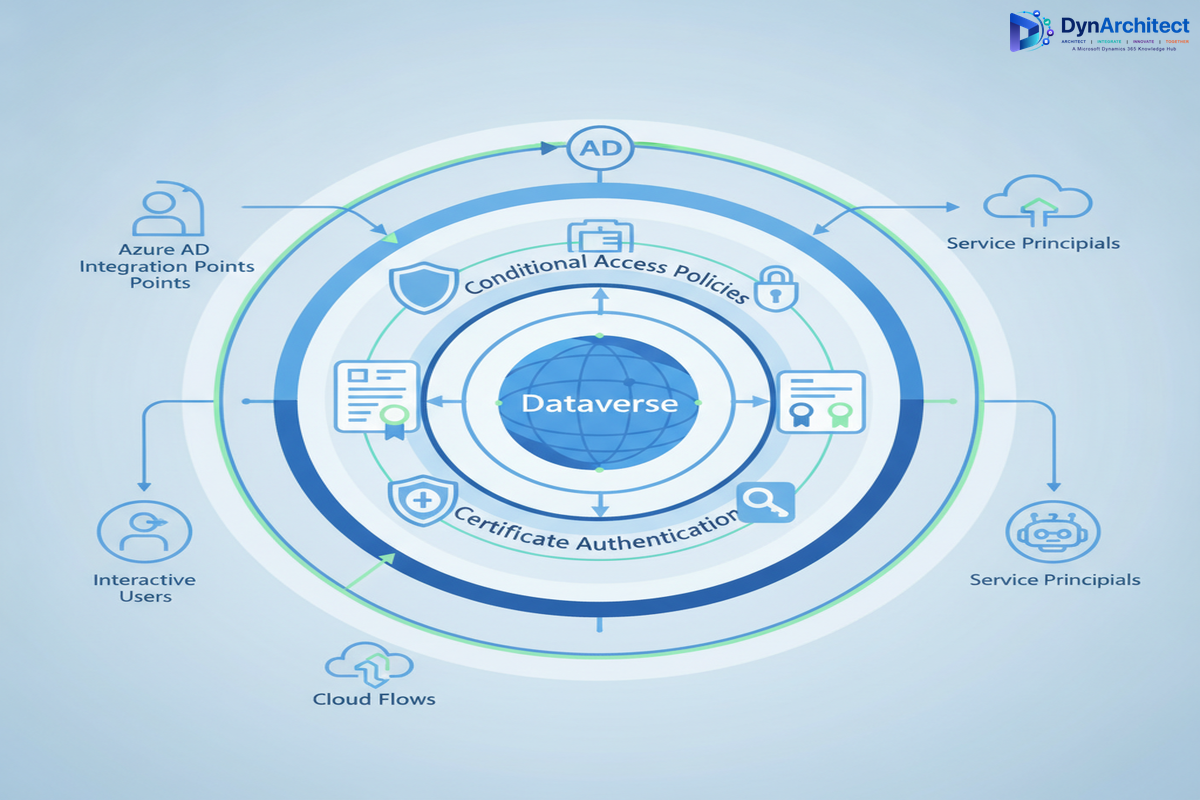
Dataverse Conditional Access & MFA: Enterprise Auth Strategy Without Breaking Power Platform

You’ve mandated that your organization must enforce conditional access policies and multi-factor authentication across all cloud services. It’s the right call from a security standpoint. Your CISO is demanding it, your compliance framework requires it, and your risk assessment puts it at the top of the priority list.

But then you hit the wall: conditional access policies that work perfectly for Microsoft 365 web applications cause Power Platform apps to stop authenticating altogether. Users can no longer access the Power Apps that run critical business processes. Your integration flows in Power Automate start failing because they’re hitting MFA challenges mid-workflow. The Dataverse API connections that your Line of Business applications depend on suddenly require interactive authentication that isn’t available in batch processing scenarios.

The tension isn’t theoretical. It’s real, it’s urgent, and it forces you to choose between security governance and operational continuity. Most organizations resolve this tension by weakening their conditional access policies, carving out exceptions for Power Platform, or exempting service accounts from MFA entirely. All of those choices push you further from true security maturity.

There’s a better path, but it requires understanding how Dataverse, Conditional Access, and the Power Platform authentication layer actually interact.

Why Standard Conditional Access Policies Break Power Platform

Conditional Access is a powerful feature in Azure AD. It evaluates device compliance, sign-in risk, geographic location, and dozens of other signals before granting authentication tokens. When you create a policy that requires MFA for all cloud apps, or limits access to corporate-managed devices, you’re making a sound security decision.

The problem: Power Platform applications don’t authenticate the same way that Outlook or SharePoint do.

When a user opens Power Apps in a browser, they’re presented with an interactive login page. That interface can handle MFA prompts, device compliance checks, and the full conditional access flow. So far, so good. But many organizations use Power Apps in ways that don’t involve a browser:

  • Mobile apps built on Power Apps don’t always gracefully handle MFA challenges in the middle of a user session.
  • Service accounts that run cloud flows in Power Automate are trying to authenticate without user interaction, which violates the interactive requirement of most conditional access policies.
  • Custom applications that use the Dataverse Web API through a service principal must request tokens in a non-interactive context. If your conditional access policy requires MFA or device compliance checks, the token request fails.
  • Integration scenarios where your on-premises LOB application authenticates directly to Dataverse hit the same wall.

The Dataverse API itself doesn’t block these scenarios. Azure AD’s conditional access policies do. The authentication platform is saying, “I need interactive user presence to validate MFA,” but the application doesn’t have a way to provide it.

The Real Cost of Over-Exempting Service Accounts

When token requests fail, the most common workaround is to exempt service accounts from conditional access policies. If you carve out an exclusion for all accounts in a particular group, those accounts no longer need to satisfy MFA requirements, even though their access might be just as sensitive as any human user’s.

This creates a security problem that goes deeper than it first appears:

First, service accounts become targets. If a threat actor gains access to a service account password, they have a golden ticket to your Dataverse environment without triggering MFA challenges. They can run integration flows, extract data, or modify records in batch operations that are harder to detect than interactive user activity.

Second, the exemption tends to expand over time. One service account becomes two. Two becomes five. Then you’re exempting entire groups. The exception becomes the rule, and your conditional access policy devolves into a symbolic gesture rather than a functioning security control.

Third, you lose the audit trail. When a service account isn’t subject to conditional access policies, you don’t get the same visibility into what it’s doing. Azure AD doesn’t log conditional access evaluations for exempt accounts. Your security team can see that the account authenticated, but not whether it was accessing data from an expected location, or whether the request exhibited anomalous characteristics.

Implementing Conditional Access for Power Platform Without Breaking Applications

The solution requires thinking about service accounts, Power Apps clients, and Dataverse API access as three distinct authentication scenarios, each with different architectural requirements.

Scenario 1: Interactive Power Apps and Power Automate Usage

This is the easiest scenario to secure. When a user opens Power Apps or Power Automate in a browser, they’re in an interactive context. Standard conditional access policies apply directly. You can require MFA, enforce device compliance, and apply geographic restrictions without breaking the user experience.

The key is to ensure that your Power Apps environment is registered in Azure AD as a cloud application, and that conditional access policies explicitly include it. Many organizations assume that Power Apps are covered by broad policies that target “all cloud apps,” but Power Apps needs explicit mention in the policy scope.

For Power Automate, the situation is slightly different. Cloud flows that require user interaction can handle MFA. But the moment you implement a background cloud flow, you’re in a non-interactive context. Conditional access policies that require MFA will block the token request.

Scenario 2: Unattended Cloud Flows and Service Accounts

This is where most organizations struggle. A cloud flow that processes orders, sends notifications, or synchronizes data is running without a user present. It needs a way to authenticate to Dataverse without triggering an MFA challenge.

The recommended approach is to use a managed identity or a service principal with a certificate-based credential, combined with a conditional access policy that evaluates non-interactive sign-ins differently than interactive ones. Instead of requiring MFA for all accounts, your policy should:

  • Require MFA for interactive sign-ins from all user accounts.
  • Skip MFA for service accounts or managed identities, but enforce stronger authentication (certificate-based credentials instead of passwords).
  • Apply additional controls to service accounts, such as restricting geographic locations or requiring authentication from specific networks.

The idea is that MFA is one control among many. If you compensate for the absence of MFA with other controls (certificate authentication, network restrictions, IP allowlisting), you maintain a strong security posture without blocking legitimate application access.

Scenario 3: Custom Applications and Direct Dataverse API Access

When a Line of Business application calls the Dataverse Web API directly, it’s requesting a token using application credentials. This is always a non-interactive flow. Conditional access policies that block non-interactive sign-ins will block this access.

Here’s where conditional access policies designed for interactive users start to feel restrictive. Your policy might say “Require MFA and a corporate device,” but neither condition can be evaluated for a non-interactive application. You’re forced to choose between blocking the integration or exempting the service account.

The better solution is to use a service principal with certificate-based authentication, combined with conditional access policies that allow certificate-authenticated service accounts to authenticate without MFA, but apply other compensating controls: network-based restrictions, role-based access control, and comprehensive audit logging.

Designing the Authentication Flow

Here’s how to architect this at the enterprise level:

Step 1: Segment Your Conditional Access Policies by Sign-In Type

Create two distinct conditional access policies: one for interactive sign-ins and one for non-interactive sign-ins. The interactive policy can be strict (require MFA, device compliance, geographic restrictions). The non-interactive policy should be more lenient on the authentication factor, but compensate with additional controls.

Step 2: Use Certificate-Based Credentials for Service Principals

Never use passwords for service accounts that need to authenticate to Dataverse. Certificates are more secure, easier to rotate, and compatible with conditional access policies that distinguish between interactive and non-interactive flows.

Step 3: Implement Network-Based Restrictions

Use conditional access policies to restrict service accounts based on network location. If your integration platform is running on premises, create a policy that allows your service principal to authenticate only from that server’s IP address. This adds a layer of security: even if credentials are compromised, the attacker can’t authenticate from an arbitrary location.

Step 4: Enable Comprehensive Logging and Monitoring

Enable Azure AD sign-in logs and audit logs. Monitor for sign-in failures, authentication attempts from unexpected locations, large batch operations, and privilege elevation. Use Azure Sentinel or a SIEM to correlate these signals and alert on anomalous activity.

Step 5: Test and Validate Before Enforcement

Before enforcing conditional access policies broadly, test them with your Power Platform applications, integrations, and service accounts. Use the conditional access policy’s report-only mode to see which authentication attempts would be blocked, then adjust policies to allow legitimate scenarios.

Implementation Challenges and How to Avoid Them

Challenge 1: Power Apps and Power Automate Have Different Requirements

Power Apps desktop application, mobile apps, and cloud flows each have slightly different authentication behavior. Test each scenario in your environment.

Challenge 2: Certificate Rotation Is Easy to Forget

Service principals with certificate-based credentials need regular rotation, typically every 1 to 2 years. Implement automated certificate rotation using Azure Automation or App Service certificate management.

Challenge 3: Conditional Access Policies Interact With Each Other

If you have multiple policies, they’re all evaluated. A token request must satisfy all applicable policies. Regularly review your policy set and consolidate where possible.

The Path to Zero Trust

Implementing conditional access and MFA for Power Platform and Dataverse is a step toward Zero Trust security architecture. Instead of trusting an account because it has MFA enabled, you trust accounts based on multiple signals: device state, location, authentication method, audit trail, and runtime behavior.

For Dataverse environments that handle sensitive data or run mission-critical processes, this level of security maturity is essential. The key is to design your authentication architecture around your actual use cases, not around a generic policy that exempts half your accounts.

Your CISO wants to see conditional access and MFA enforced. Your application owners need Power Platform and integrations to work reliably. These goals aren’t in conflict if you architect the authentication layer thoughtfully.

Power Pages Server Logic Is GA: Time to Stop Shipping API Keys to the Browser

Solution architect reviewing a secure server infrastructure and API governance diagram on an office display

Every Power Pages solution architect who has built an external-facing portal knows the workaround. A customer portal needs to check inventory in an external warehouse system, validate an account number against a legacy AS/400, or pull a credit score from a third-party service. Client-side JavaScript can’t do that safely, because anything it calls, including the API key or bearer token needed to authenticate the call, is sitting in plain view in the browser’s network tab the moment a curious (or malicious) visitor opens developer tools. For years the answer was to stand up a dedicated Azure Function as a proxy, just to keep a secret out of the page. It worked, but it meant every external integration came with its own deployment pipeline, its own monitoring, and its own set of credentials to rotate somewhere other than the Power Pages site itself.

Power Pages Server Logic, which Microsoft moved to general availability on April 1, 2026 after introducing it in preview the previous October, removes the need for that detour in a lot of cases. It lets developers write server-side JavaScript that runs inside the Power Pages runtime itself, callable from a page but invisible to it. For architects who have been maintaining a small fleet of Azure Function proxies purely to hide credentials, this is worth a real evaluation, not just a note for next quarter’s backlog.

Solution architect reviewing a secure server infrastructure and API governance diagram on an office display

Why the client-side workaround was never actually secure

It’s worth being precise about what Server Logic fixes, because the risk it addresses is easy to underestimate until someone actually demonstrates it. Web roles and table permissions in Power Pages do a solid job of controlling what a visitor can read or write in Dataverse. They do nothing, however, for a call your client-side script makes to an outside system. If that call needs an API key, and the key lives in a JavaScript file the browser downloads and executes, the key is exposed to anyone who opens the console, regardless of how tightly the portal’s Dataverse permissions are configured. Teams have worked around this by obfuscating scripts, by routing calls through Azure API Management with its own key, or by standing up the proxy function described above. All three approaches work, but all three also add infrastructure that has nothing to do with the actual business problem the portal was built to solve.

What Power Pages Server Logic actually executes

Server Logic scripts run in a constrained JavaScript environment, not a full Node.js sandbox. Microsoft’s documentation specifies ECMAScript 2023 compliance with browser-only APIs such as fetch, XMLHttpRequest, and direct DOM access deliberately blocked, along with other patterns considered unsafe for a multi-tenant hosted runtime. In practice, this means a script author can’t accidentally (or deliberately) reach outside the sanctioned execution model the way they could in an open Node environment.

The authoring flow itself lives inside the standard Power Pages workspace. From the site’s Set Up area, a developer selects Server Logic, creates a new entry with a name that also becomes its API resource identifier, assigns the web roles allowed to invoke it, and then opens the code editor directly in Visual Studio Code from that same screen. Each server logic resource is addressed at a predictable endpoint, /_api/serverlogics/<name>, and the script itself maps HTTP verbs to exported functions: get() for reads, post() for creates, put() and patch() for updates, and del() for deletes. That mapping alone tends to push teams toward cleaner API design than the grab-bag of ad hoc client functions many portals accumulate over a few years of incremental requests.

Developer workstation with a code editor and cloud API architecture diagram on dual monitors

Two ways to call it, and they’re not interchangeable

There are two supported invocation paths, and choosing the wrong one for a given scenario creates unnecessary friction. From a client-side script, you call server logic through shell.safeAjax(), which automatically attaches the CSRF token Power Pages requires for authenticated calls originating from the browser. This is the right pattern any time a form submission, button click, or dynamic page interaction needs to trigger the logic in response to something the visitor does.

The second path is the serverlogic Liquid tag, invoked directly inside a Liquid template during page rendering. Because Liquid itself already executes server-side, there’s no CSRF token to manage, and no round trip back to the browser is needed before the result is available to render. This path fits scenarios where a page needs to show data pulled from an external system, or Dataverse data transformed by business logic, as part of the initial page load rather than in response to a later interaction. Architects who default to the client-side call for everything, out of habit, end up adding an unnecessary network hop and a loading-state UI element for content that could have been resolved before the page was even sent to the browser.

The governance settings that decide whether this is safe to turn on

Server Logic ships with a handful of site settings that determine how much latitude the feature has, and a rollout plan should account for all of them before the first script goes live. ServerLogic/Enabled is the master switch, defaulting to true once the capability is available on a site. ServerLogic/AllowedDomains restricts which external hosts a script is permitted to call, which matters because the default behavior otherwise permits outbound calls to any domain. ServerLogic/TimeoutInSeconds caps execution time, defaulting lower but configurable up to 240 seconds for scripts doing heavier data transformation or waiting on a slow upstream API. Perhaps most importantly for security-conscious organizations, tenant administrators retain the ability to block outbound HTTP calls entirely on a per-site basis, which stops a compromised or misconfigured script from being used to exfiltrate data to an attacker-controlled endpoint. None of these settings are exotic, but skipping the review of even one of them before go-live is how a well-intentioned feature turns into a new attack surface instead of closing an old one.

Access itself is still governed by the same web roles and table permissions that already control the rest of the site, which is a deliberate design choice. Server Logic doesn’t introduce a parallel authorization model; it inherits the one your portal already has, so the roles you’ve already defined for a given customer or partner segment carry through to what that segment can trigger.

What this replaces, and what it doesn’t

It’s tempting to treat Server Logic as a wholesale replacement for custom plugin code, but that’s not quite the right mental model. Dataverse plugins written in C# still own the synchronous event pipeline, the true pre-operation and post-operation hooks that fire on record create, update, or delete regardless of which client touched the record. Server Logic operates at the Power Pages layer, invoked explicitly by a page or a Liquid template, not as a reaction to a Dataverse platform event. What it does replace cleanly is the narrower, very common pattern of a proxy built purely to keep a secret off the client: that use case moves into Server Logic with less infrastructure and one less deployment pipeline to maintain.

It’s also worth flagging that Microsoft’s own preview announcement listed several capabilities as planned ahead of general availability, including unbound Dataverse custom API support and a dedicated debugging playground. Given how quickly this ecosystem iterates, architects evaluating a migration should confirm the current state of those specific capabilities against the live Microsoft Learn documentation rather than assuming everything mentioned in the original preview post has shipped by the time they read this.

A practical starting point

For teams carrying one or two Azure Function proxies that exist solely to shield an API key from a Power Pages portal, Server Logic is a reasonable first migration candidate rather than a full platform overhaul. Pick the simplest existing proxy, rebuild its logic as a server logic resource, route the corresponding client call through shell.safeAjax(), and validate the governance settings against your organization’s actual security requirements before promoting it to production. Routeget Technologies has been walking clients through exactly this kind of targeted migration as Server Logic has moved from preview to GA, and the pattern holds regardless of industry: start with the integration that’s easiest to test, confirm the timeout and domain restrictions match what the proxy was already enforcing, and expand from there once the first one is running cleanly in production.


#PowerPages #ServerSideJavaScript #DataversePortals #APIGovernance #PowerPlatformSecurity #LowCodeDevelopment