

It is 8 a.m., and your finance team discovers the unattended desktop flow that processes overnight vendor invoices never completed. The bot logged into the ERP, opened the vendor invoice module, clicked through the first two forms, then stopped. No error message. No retry. By now, 500 invoices have piled up in the inbound folder, and the accounts payable clerk is manually logging them in. This scenario plays out in production environments every week, and the root cause is almost always the same: a UI element did not load in time, a dropdown rendered differently, or a network timeout caught the flow mid-interaction. The flow had no error handling, so it simply stopped, leaving no trace for anyone to diagnose.
This is the cost of unguarded desktop automation in finance operations. Unlike cloud-based flows with built-in retry mechanisms and structured error handling, Power Automate desktop flows operate at the edges of UI fragility. They click buttons, read text fields, and wait for controls to appear, making them dependent on stable selectors, predictable timing, and consistent system state. When any of those assumptions break, the entire unattended run fails silently, and your batch processing becomes a silent disaster.
Designing reliable desktop flows for finance means treating error handling not as an afterthought, but as a structural requirement. This guide walks through the strategies, patterns, and tools that let you build unattended RPA flows that tolerate real-world failures and keep your finance processes moving.
Where Errors Hide in Desktop Flows
Desktop flows fail at predictable boundaries. Understanding where to expect trouble is the first step toward preventing it.
UI interactions are the most fragile component of any desktop flow. A selector depends on stable element IDs, control names, or image references. But ERP forms change with updates, browsers render elements in different orders depending on load times, and dropdowns sometimes load asynchronously. A web automation expert will click a “Save” button that works perfectly in test, then fails in production because the button did not render before the click action fired.
File operations introduce another failure mode. Your flow reads vendor invoices from a network folder. But network connectivity drops for a second, a filename contains unexpected characters, or the file gets locked by another process. Without explicit error handling, the flow crashes and the batch stalls.
External system calls add latency and timeout risk. When your flow posts data to Dynamics 365 Finance and Operations or calls an API, network delays or rate-limiting can cause timeouts. The flow queues the request, waits 30 seconds, and gets no response. Without retry logic, it treats a temporary timeout as permanent failure.
Database operations can fail if the connection drops, the schema changes, or a unique constraint violation occurs. These are recoverable errors, but only if your flow is designed to catch them.
The critical insight is that none of these failures are truly catastrophic. A file-read error is recoverable (retry a few seconds later). A UI selector failure might be fixable with a fallback selector. A rate-limited API call should wait and retry, not fail the entire batch. But standard desktop flow design treats them all as terminal.
Structuring Error Detection and Recovery
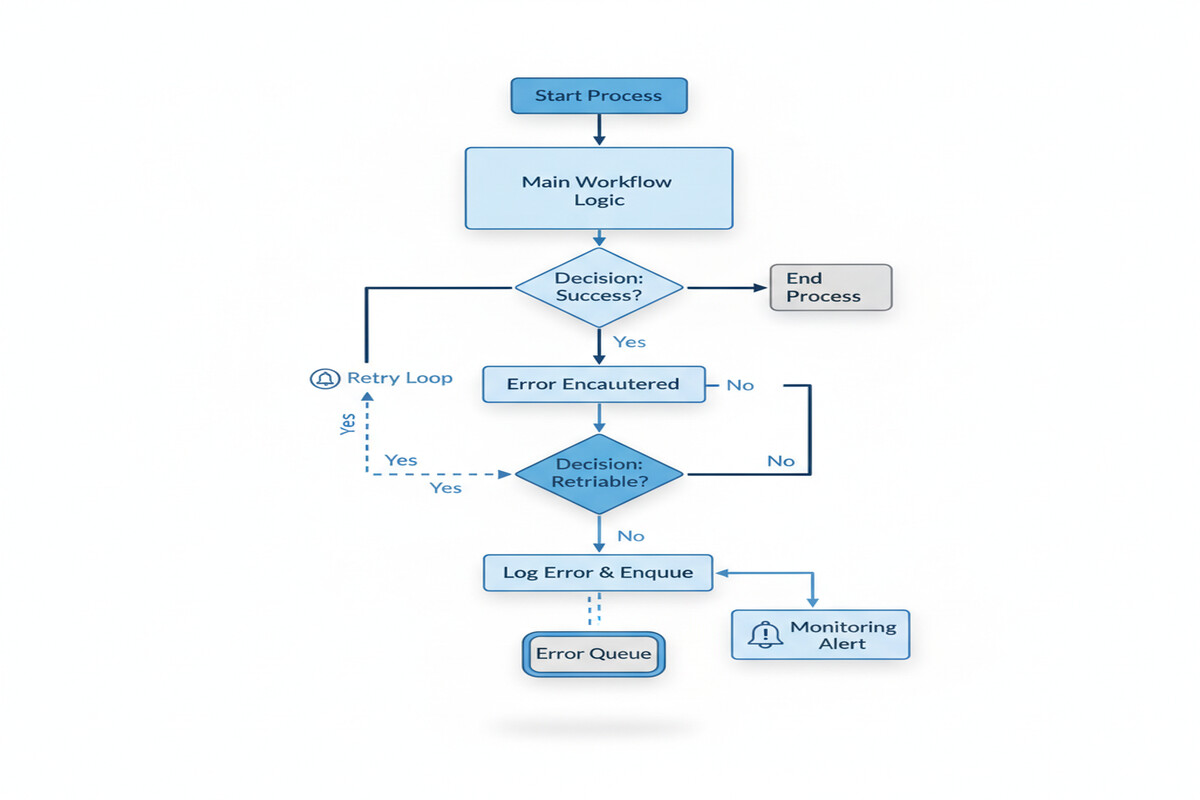
The fix starts with deliberate error handling at every risky operation. In Power Automate desktop flows, this means wrapping key actions in error-handling blocks and designing recovery logic for each failure type.
For UI interactions, implement multiple selector strategies. Your primary selector targets a button by its automation ID, but include a fallback that searches by image or OCR text. If the first method fails, the flow tries the second before declaring defeat. Add explicit waits with timeouts before clicking, giving slow-loading forms time to render. Rather than hoping a dropdown appears in exactly 2 seconds, wait up to 10 seconds but proceed immediately if it appears sooner.
For file operations, check that files exist before attempting to read them. Wrap file reads in error handlers that catch “file not found” or “access denied” errors. Implement a retry loop that waits 3 seconds and tries again, up to three times. This handles transient network glitches without manual intervention. Log every file operation to your audit trail, including timestamps and error details.
For API calls, build explicit timeout and retry logic. When calling a Finance and Operations endpoint, set a reasonable timeout (10 to 15 seconds for most invoice operations), then add retry logic. If the call fails, wait a few seconds, then retry. This pattern, called exponential backoff (where wait time increases with each retry), handles temporary network issues and transient service problems. After three retries, log the failure and move to the next item, rather than halting the entire batch.
For validation errors (OCR confidence too low, GL account does not exist, vendor number invalid), treat these differently. These are not temporary failures; they reflect real data quality issues. Log the validation failure with details, add the item to a “review queue” in Dataverse, and continue processing. This partial-failure pattern is critical for batch operations: some items succeed, some need manual review, and the entire batch does not fail because of one bad invoice.
Building Visibility Through Monitoring
Error handling is only useful if you know when it is being triggered. Build monitoring into your flows from the start.
Every error should be logged to a structured destination. Create a Dataverse table called “Desktop Flow Error Log” with fields for flow name, timestamp, error type, error message, affected item (invoice number, vendor ID), and status (retry pending, review needed, failed). When your flow encounters an error, write a record to this table before proceeding.
Implement email and Teams alerts for critical failures. If a flow encounters more than three failures in a single run or fails to process more than 10 percent of items, send an alert to your finance operations team. Include the error log snippet so they can see which items need attention.
Create a Power BI dashboard showing flow performance metrics: items processed per run, success rate, average processing time per item, and top error types. Track these over weeks to identify patterns. Perhaps 95 percent of failures are “GL account not found,” indicating a data quality issue in your GL master. Perhaps 80 percent fail between 2 a.m. and 3 a.m., suggesting a scheduled database backup that blocks access.
Use Dataverse to maintain a “dead-letter queue” of failed items. When an error is unrecoverable after retries, the flow moves the item to this queue instead of simply stopping. Your finance team reviews the dead-letter queue each morning, triaging items for manual processing or corrective action.
A Practical Implementation
Consider a concrete scenario: your flow processes vendor invoices from a shared folder, extracts details via OCR, validates data against your GL, and posts to Dynamics 365 Finance and Operations.
The flow starts by listing files in the folder. Error handling: check that the folder exists and is accessible. If not, log a failure and exit gracefully.
For each file, the flow reads it (error handling: retry three times if locked or inaccessible). It applies OCR to extract vendor number, invoice amount, and GL account. If OCR confidence is below 85 percent, log the item as “low confidence” and queue it for review. This is not a retry scenario; it is a data quality gate.
The flow validates the vendor number against your vendor master via Finance and Operations API. Error handling: wrap in try/catch. If the call times out, retry with exponential backoff (wait 3 seconds, retry; wait 6 seconds, retry; wait 12 seconds, retry). If it still fails, log and queue for review. If the vendor is not found, the flow logs this specific error and moves the item to the review queue—retrying is pointless.
Finally, the flow posts the invoice to Finance and Operations. Wrap this in retry logic: try once, then retry twice with waits. If all three attempts fail, log the invoice with full details to the error table and dead-letter queue.
Throughout, track metrics: items processed, succeeded, reviewed, and failed. At the end of the run, log a summary and send an alert if the failure rate exceeds your threshold.
Designing for Partial Success
The mindset shift is subtle but profound. Design flows to succeed partially. Some invoices post immediately. Some fail validation and go to the review queue. Some hit transient API errors, retry, and eventually post. Some encounter unrecoverable errors and go to the dead-letter queue.
This requires that underlying systems support idempotency (running the same operation twice produces the same result, not duplicates). It requires careful state tracking so your flow knows which items have been processed. It requires monitoring that surfaces failures quickly.
Test error paths as deliberately as you test the happy path. Identify the three highest-risk operations in your flow. Add explicit error handling to each. Add logging. Set up alerts. Then scale from there. This is how you build desktop flows that run unattended, at scale, in production finance environments, turning silent failures into managed, observable exceptions.
Routeget Technologies brings deep experience in building production-scale RPA for finance automation, from designing error-resilient flows through monitoring strategy and alerting. If your organization is scaling unattended desktop automation and needs guidance on reliability and governance, we can help navigate the implementation challenges that most organizations discover too late.
#PowerAutomateErrorHandling #RPAFinance #DesktopFlowRetry #UnattendedAutomation #DynamicsFinanceAutomation #AutomationReliability #ProcessMining
No comment yet, add your voice below!