The accounts payable team receives vendor invoices across email, portals, and EDI feeds. Someone needs to log into three separate legacy systems, extract data, cross-check line items, and route approvals. This work consumes 12 hours daily, happens at predictable times, and does not require human judgment except for exceptions. Your finance director has asked: can we stop paying for four additional AP staff and let the system handle the routine work?
This is the real-world problem desktop flows address. While cloud flows orchestrate modern cloud-native APIs and services, they cannot click buttons in legacy Windows applications, extract text from PDF scans, or navigate desktop tax compliance software. Desktop flows bridge this gap by providing unattended, schedule-driven automation of legacy application interactions, freeing your team to concentrate on exceptions and decision-making while batch operations run overnight.
Why Desktop Flows Matter for Finance Operations
Finance teams in mid-market and enterprise organizations operate mixed technology landscapes. Core enterprise applications like Dynamics 365 Finance coexist alongside legacy on-premises tax software, obsolete bank reconciliation tools, and third-party applications with no modern APIs. Replacing all of these is neither feasible nor economically justified when the application only requires data entry at predictable intervals.
Desktop flows, also called Robotic Process Automation (RPA), automate routine system interactions without rewriting the applications. A bot logs into the legacy system, executes the exact sequence of steps a human operator would perform, and exits cleanly. If the expected screen does not appear or a business rule blocks the action, the bot detects the failure and alerts an operator. An invoice entry workflow requiring 5 minutes per vendor invoice, repeated 200 times per month, consumes 1,000 hours annually. Automating that workflow with desktop flows reduces workload to oversight and exception handling while eliminating transcription errors and enabling overnight batch completion.
Desktop Flows Versus Cloud Flows
Cloud flows in Power Automate work with APIs and cloud services. They call Dynamics 365, send emails through Exchange Online, read SharePoint files, or trigger webhooks. Cloud flows excel at integration and orchestration but assume the target application exposes an API.
Desktop flows operate at the UI layer, interacting with Windows applications like a human user does: clicking buttons, typing text, reading screen content, interpreting dialog boxes. This makes desktop flows universally applicable to any Windows application, regardless of age. The tradeoff is brittleness; desktop flows rely on locating UI elements by coordinate, accessibility label, or image recognition, so UI layout changes break selectors. For finance operations, this distinction is critical. A desktop flow automates a legacy tax system without APIs because it mimics manual steps your tax accountant performs daily. A cloud flow cannot do this without significant custom development.
Architecture for Unattended Finance Automation
Unattended automation means the bot runs on a scheduled timer without human intervention, executing overnight during non-business hours to avoid contention with human users.
A robust finance automation workflow follows this pattern:
Pre-execution validation. Before the bot starts, verify preconditions. Check that required input files are present, confirm the target system is online and accessible, and validate that previous runs completed successfully. A cloud flow orchestrates these checks and decides whether to launch the desktop flow.
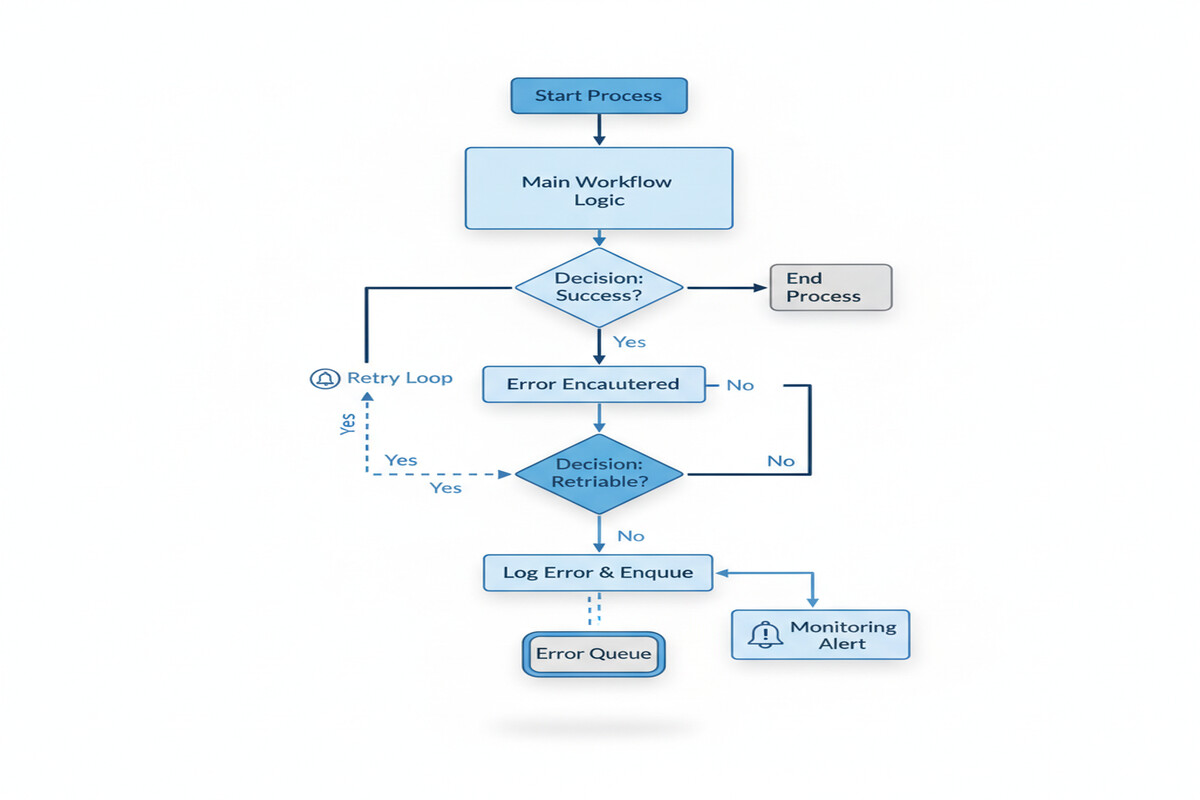
Bot execution with retry logic. The desktop flow logs into the target application, performs required operations, and captures results. If an operation fails, it logs the exception and continues with the next item if possible, or halts if the failure is blocking. Desktop flows include error handling for UI recognition failures, network timeouts, and permission errors.
Output logging and escalation. After each automated action, the desktop flow logs results to a structured output table: success, failure reason, timestamp, and extracted data. If exceptions occur, the flow writes them to a queue for human review. This is critical. The bot must not silently fail; it must make failures visible so operators can triage and fix issues before they compound.
Completion notification. Once the batch completes, a cloud flow sends a summary to finance stakeholders: how many items processed, exceptions logged, and link to the exception queue.
Practical Implementation Considerations
UI Recognition and Fragility. Desktop flows locate UI elements by image recognition, coordinate position, or accessibility properties. If the application layout changes, image-based selectors break. Use accessibility labels and text properties where possible, as these survive minor layout changes. Reserve image selectors for elements without stable labels.
Performance and Scalability. A single desktop flow bot runs on one machine and processes one item at a time. For high-volume automation (processing 1,000 invoices nightly), register multiple desktop flow machines in a machine group to distribute load.
Logging and Observability. Desktop flows execute headless; you cannot see what the bot is doing in real time. Detailed logging is mandatory. Log application state before each action, results after each action, and any exception. Store logs in a Dataverse table so they are queryable and auditable, supporting both troubleshooting and compliance reporting.
Maintenance and Regression Testing. When the underlying application receives updates, test your desktop flows immediately. UI changes, new validation rules, or altered field names break selectors or logic. Establish a regression test suite of known input scenarios your bot should handle correctly, and re-run after each application patch.
A Real Finance Workflow Example
Consider invoice entry automation: vendors email invoices. An AP team member downloads each invoice, logs into a legacy accounting system, enters vendor name, invoice amount, invoice date, and account coding, then routes for approval. The system allows bulk CSV import but only accepts one file per session and takes 10 minutes to process.
An unattended desktop flow workflow:
Step 1: A cloud flow monitors a SharePoint folder for new invoice PDFs. When a file arrives, it extracts to a temporary folder.
Step 2: A cloud flow calls Azure Form Recognizer to extract vendor name, invoice amount, and date from the PDF. Results write to a staging table in Dataverse.
Step 3: A desktop flow runs for each PDF. It logs into the legacy accounting system, fills in extracted vendor name, amount, and date, selects the appropriate GL account, and saves. If the vendor is not found, the bot adds it first.
Step 4: The desktop flow writes success or exception status back to Dataverse. A cloud flow checks the status table; if an exception occurred (vendor already exists with different details, invalid GL account), it sends an alert to the AP supervisor.
Step 5: Each night at 11 PM, a cloud flow sends a summary: invoices processed, exceptions logged, link to the exception queue.
The result is invoices moving from inbox to approval routing without manual data entry. The AP team focuses on resolving exceptions and approving borderline items, not transcribing PDFs.
Security and Compliance
Desktop flows handle confidential financial data and interact with sensitive systems. Security requirements include:
Credential Management. Never hardcode credentials in the desktop flow. Store them in Azure Key Vault or Power Automate connection references, retrieving them at runtime. Rotate credentials regularly.
Audit Trail. Document every action the bot takes. Log entries should include who authorized the automation, when it ran, what it did, and who reviewed results. Finance auditors often require this for SOX compliance.
Exception Handling. If the bot encounters an error, it should halt, log the error, and alert a human. This prevents the bot from automatically creating duplicate invoices or misrouting approvals.
Testing in Isolation. Test desktop flows in a sandboxed environment before production deployment. Test happy path (normal invoices) and edge cases (missing vendor data, invalid GL accounts, locked records).
Conclusion
Desktop flows bring practical capability to finance operations: automating routine legacy system interaction without expensive system replacement or ongoing manual labor. The tradeoff is operational complexity. Desktop flows require robust logging, exception handling, UI selector maintenance, and audit oversight. For organizations willing to invest in these practices, the result is a finance team that operates more efficiently, catches exceptions faster, and focuses on value-added work.
Routeget Technologies has built and maintained desktop flow automation for finance processes across dozens of implementations. We understand UI-based automation fragility, observability importance, and the specific requirements auditors impose on unattended bots operating on financial data. If your organization is evaluating desktop flow automation for AP, AR, GL reconciliation, or tax compliance workflows, we can help you design robust patterns that scale without creating compliance or operational risk.
#PowerAutomateRPA #DesktopFlows #FinanceAutomation #UnattendedBots #ERPIntegration #FinanceOperations #ProcessAutomation #LegacySystemModernization