Automating Finance Operations Without Manual Supervision: Desktop Flows for Unattended Batch Processing in Power Automate

The accounts payable team receives vendor invoices across email, portals, and EDI feeds. Someone needs to log into three separate legacy systems, extract data, cross-check line items, and route approvals. This work consumes 12 hours daily, happens at predictable times, and does not require human judgment except for exceptions. Your finance director has asked: can we stop paying for four additional AP staff and let the system handle the routine work?

This is the real-world problem desktop flows address. While cloud flows orchestrate modern cloud-native APIs and services, they cannot click buttons in legacy Windows applications, extract text from PDF scans, or navigate desktop tax compliance software. Desktop flows bridge this gap by providing unattended, schedule-driven automation of legacy application interactions, freeing your team to concentrate on exceptions and decision-making while batch operations run overnight.

Why Desktop Flows Matter for Finance Operations

Finance teams in mid-market and enterprise organizations operate mixed technology landscapes. Core enterprise applications like Dynamics 365 Finance coexist alongside legacy on-premises tax software, obsolete bank reconciliation tools, and third-party applications with no modern APIs. Replacing all of these is neither feasible nor economically justified when the application only requires data entry at predictable intervals.

Desktop flows, also called Robotic Process Automation (RPA), automate routine system interactions without rewriting the applications. A bot logs into the legacy system, executes the exact sequence of steps a human operator would perform, and exits cleanly. If the expected screen does not appear or a business rule blocks the action, the bot detects the failure and alerts an operator. An invoice entry workflow requiring 5 minutes per vendor invoice, repeated 200 times per month, consumes 1,000 hours annually. Automating that workflow with desktop flows reduces workload to oversight and exception handling while eliminating transcription errors and enabling overnight batch completion.

Desktop Flows Versus Cloud Flows

Cloud flows in Power Automate work with APIs and cloud services. They call Dynamics 365, send emails through Exchange Online, read SharePoint files, or trigger webhooks. Cloud flows excel at integration and orchestration but assume the target application exposes an API.

Desktop flows operate at the UI layer, interacting with Windows applications like a human user does: clicking buttons, typing text, reading screen content, interpreting dialog boxes. This makes desktop flows universally applicable to any Windows application, regardless of age. The tradeoff is brittleness; desktop flows rely on locating UI elements by coordinate, accessibility label, or image recognition, so UI layout changes break selectors. For finance operations, this distinction is critical. A desktop flow automates a legacy tax system without APIs because it mimics manual steps your tax accountant performs daily. A cloud flow cannot do this without significant custom development.

Architecture for Unattended Finance Automation

Unattended automation means the bot runs on a scheduled timer without human intervention, executing overnight during non-business hours to avoid contention with human users.

A robust finance automation workflow follows this pattern:

Pre-execution validation. Before the bot starts, verify preconditions. Check that required input files are present, confirm the target system is online and accessible, and validate that previous runs completed successfully. A cloud flow orchestrates these checks and decides whether to launch the desktop flow.

Bot execution with retry logic. The desktop flow logs into the target application, performs required operations, and captures results. If an operation fails, it logs the exception and continues with the next item if possible, or halts if the failure is blocking. Desktop flows include error handling for UI recognition failures, network timeouts, and permission errors.

Output logging and escalation. After each automated action, the desktop flow logs results to a structured output table: success, failure reason, timestamp, and extracted data. If exceptions occur, the flow writes them to a queue for human review. This is critical. The bot must not silently fail; it must make failures visible so operators can triage and fix issues before they compound.

Completion notification. Once the batch completes, a cloud flow sends a summary to finance stakeholders: how many items processed, exceptions logged, and link to the exception queue.

Practical Implementation Considerations

UI Recognition and Fragility. Desktop flows locate UI elements by image recognition, coordinate position, or accessibility properties. If the application layout changes, image-based selectors break. Use accessibility labels and text properties where possible, as these survive minor layout changes. Reserve image selectors for elements without stable labels.

Performance and Scalability. A single desktop flow bot runs on one machine and processes one item at a time. For high-volume automation (processing 1,000 invoices nightly), register multiple desktop flow machines in a machine group to distribute load.

Logging and Observability. Desktop flows execute headless; you cannot see what the bot is doing in real time. Detailed logging is mandatory. Log application state before each action, results after each action, and any exception. Store logs in a Dataverse table so they are queryable and auditable, supporting both troubleshooting and compliance reporting.

Maintenance and Regression Testing. When the underlying application receives updates, test your desktop flows immediately. UI changes, new validation rules, or altered field names break selectors or logic. Establish a regression test suite of known input scenarios your bot should handle correctly, and re-run after each application patch.

A Real Finance Workflow Example

Consider invoice entry automation: vendors email invoices. An AP team member downloads each invoice, logs into a legacy accounting system, enters vendor name, invoice amount, invoice date, and account coding, then routes for approval. The system allows bulk CSV import but only accepts one file per session and takes 10 minutes to process.

An unattended desktop flow workflow:

Step 1: A cloud flow monitors a SharePoint folder for new invoice PDFs. When a file arrives, it extracts to a temporary folder.

Step 2: A cloud flow calls Azure Form Recognizer to extract vendor name, invoice amount, and date from the PDF. Results write to a staging table in Dataverse.

Step 3: A desktop flow runs for each PDF. It logs into the legacy accounting system, fills in extracted vendor name, amount, and date, selects the appropriate GL account, and saves. If the vendor is not found, the bot adds it first.

Step 4: The desktop flow writes success or exception status back to Dataverse. A cloud flow checks the status table; if an exception occurred (vendor already exists with different details, invalid GL account), it sends an alert to the AP supervisor.

Step 5: Each night at 11 PM, a cloud flow sends a summary: invoices processed, exceptions logged, link to the exception queue.

The result is invoices moving from inbox to approval routing without manual data entry. The AP team focuses on resolving exceptions and approving borderline items, not transcribing PDFs.

Security and Compliance

Desktop flows handle confidential financial data and interact with sensitive systems. Security requirements include:

Credential Management. Never hardcode credentials in the desktop flow. Store them in Azure Key Vault or Power Automate connection references, retrieving them at runtime. Rotate credentials regularly.

Audit Trail. Document every action the bot takes. Log entries should include who authorized the automation, when it ran, what it did, and who reviewed results. Finance auditors often require this for SOX compliance.

Exception Handling. If the bot encounters an error, it should halt, log the error, and alert a human. This prevents the bot from automatically creating duplicate invoices or misrouting approvals.

Testing in Isolation. Test desktop flows in a sandboxed environment before production deployment. Test happy path (normal invoices) and edge cases (missing vendor data, invalid GL accounts, locked records).

Conclusion

Desktop flows bring practical capability to finance operations: automating routine legacy system interaction without expensive system replacement or ongoing manual labor. The tradeoff is operational complexity. Desktop flows require robust logging, exception handling, UI selector maintenance, and audit oversight. For organizations willing to invest in these practices, the result is a finance team that operates more efficiently, catches exceptions faster, and focuses on value-added work.

Routeget Technologies has built and maintained desktop flow automation for finance processes across dozens of implementations. We understand UI-based automation fragility, observability importance, and the specific requirements auditors impose on unattended bots operating on financial data. If your organization is evaluating desktop flow automation for AP, AR, GL reconciliation, or tax compliance workflows, we can help you design robust patterns that scale without creating compliance or operational risk.


#PowerAutomateRPA #DesktopFlows #FinanceAutomation #UnattendedBots #ERPIntegration #FinanceOperations #ProcessAutomation #LegacySystemModernization

Building a Sustainable Power Automate Center of Excellence: Governance Without Gridlock

Most organizations that deploy Power Automate do so without any governance structure, then scramble to build one after their citizen developers have created hundreds of inconsistent, poorly monitored automations. The result is predictable: Shadow IT runs deeper, cloud costs spike unpredictably, and IT eventually responds with policies so rigid that the business stops creating new flows and the platform stalls. The tension between speed and control is real, but it does not require choosing one or the other.

A Center of Excellence for Power Automate is simply a structured approach to decision-making: who gets to build flows, what patterns we enforce, how we measure success, and where funding comes from. It is not bureaucracy. It is the difference between a platform that serves business strategy and one that devolves into a cost and compliance liability.

Why Power Automate Centers of Excellence Matter

Before the Cloud, automation meant capital expenditure on licensed tools, IT-owned build processes, and a multi-year return-on-investment narrative. Business units that needed a workflow change submitted requests and waited. Power Automate inverted this model. Individual contributors with no coding background can now build workflows that connect dozens of applications, move data, and execute business logic in minutes rather than months.

This democratization is valuable, but it creates an organizational problem. Without structure, a 500-person organization can quickly accumulate 2,000 flows built by people who do not know about each other’s work, who use different authentication patterns, who log into different cloud environments, and who have no shared understanding of which flows are business-critical versus experimental prototypes. When a flow breaks at 2 a.m. on a Saturday, no one knows why, because the person who built it is no longer with the company. When your automation bill spikes 40% month over month, you cannot explain why, because no one is tracking flow execution patterns.

A CoE provides visibility, standardization, and accountability without becoming an approval bottleneck. It articulates the expectations around flow design, security, data governance, and cost management so that developers can move quickly and IT can sleep at night.

Organizational Structure: Three Patterns That Work

The most effective CoE structures share a common shape: a small central team responsible for standards, enablement, and governance; a distributed network of power users embedded within business units; and clear escalation paths from edge to center.

The central team should be small, typically two to four people, depending on organization size. Its role is not to build flows for every department, but to establish patterns, mentor citizen developers, and make the hard calls when conflicts arise. The team member should come from IT but ideally have business acumen—someone who understands both technical architecture and why the business cares about a given workflow. This role often seats best as a product manager rather than a pure engineer, since the job is as much about communication and change management as it is about technical decisions.

Distributed power users are the actual force multiplier. These are individuals in Finance, Operations, Sales, or HR who have invested time learning Power Automate deeply and can build flows, mentor peers, and serve as the first line of triage when flows behave unexpectedly. Organizations often resist this approach because it seems to decentralize control, but experience shows the opposite. When power users exist within their own departments, flows get built faster, are maintained more reliably, and align better with business context because the builder is embedded in the problem domain. The CoE provides training, sets standards, and holds power users accountable to those standards, but does not make them beg for permission.

Escalation paths matter. If a power user wants to build a flow that touches sensitive financial data, or that orchestrates changes across multiple critical systems, the CoE should have a clear, lightweight process to evaluate the design and approve the build. This is not a veto gate; it is a collaborative design review. Most escalations resolve quickly because the CoE can flag real risks (poor error handling, missing audit trails, data loss exposure) and guide the builder toward a more robust solution. The business gets its flow, and IT maintains reasonable confidence in the architecture.

Governance Framework: Standards Without Bureaucracy

Power Automate governance typically fails in one of two directions: it is either too loose (anything goes, leading to chaos), or too tight (everything requires approval, leading to workarounds). A functional governance framework sits between these poles.

Start with flow taxonomy. Define three categories: production flows (business-critical, require naming conventions and documentation), standard flows (departmental automations that follow company patterns but do not require escalation), and experimental flows (one-off tests and prototypes, deleted after 90 days if not promoted to production). This simple taxonomy lets developers understand expectations immediately and lets IT focus oversight where it matters most.

Establish naming and documentation standards. This sounds bureaucratic but solves real problems. A flow named “P001” tells you nothing. A flow named “Sales-QuoteApproval-VP” immediately tells you the business domain, the function, and the approval level. When a developer checks the existing flows, they can find related work and avoid duplication. When you need to disable a set of flows for maintenance, you can identify all related ones quickly. Documentation templates (one sentence describing what the flow does, the owner contact, the systems it touches) take five minutes to complete and dramatically reduce the knowledge burden when the builder leaves the company.

Data governance rules must be specific to your risk profile. Most organizations should establish: flows that touch Dynamics 365 Finance or HR systems must use managed identities and log all operations to an audit table; flows that create, update, or delete records in any production environment must include error handling and notification to the flow owner on failure; flows that move data between systems must encrypt data in transit and log the data movement event; flows that exceed 50 executions per day should be reviewed quarterly to confirm they still provide business value. These rules are not arbitrary IT gatekeeping; they reflect the business’s real exposure to data loss, compliance violations, and cost overruns.

Funding and Stakeholder Alignment

A CoE that must justify its existence through a departmental budget burns out quickly. Instead, embed the cost in the automation project’s business case. When Finance proposes an automation that will save a manual process, the total cost of ownership includes the CoE’s contribution: the design review, the mentoring, the platform licensing, the monitoring and ongoing optimization. This aligns incentives. If the CoE is too restrictive or slow, the business unit pushes back and the executive sponsor hears about it. If the CoE is too permissive and allows bad automations to proliferate, the operations team sees costs rise and demands better governance.

Create a steering committee that meets quarterly, including representatives from major business units, IT leadership, finance, and compliance. This committee reviews CoE performance (how many flows, what categories, cost per automation), approves new platform features or tool purchases, and arbitrates any major policy changes. This keeps the CoE accountable and prevents it from becoming an insular IT function that loses touch with business needs.

Measuring Success

Set metrics that matter. Track the number of production flows, the average time to build a flow once it is approved, the ratio of successful executions to failures, and the cost per automation. More importantly, survey power users and business unit leaders annually on whether Power Automate is enabling them or creating friction.

A CoE that has reduced flow-creation cycle time from eight weeks (under an old IT process) to three days and has achieved 99.5% execution reliability is delivering value even if it has not eliminated every risk. The point is not perfection; it is enabled business agility coupled with acceptable risk.

Common Pitfalls

Organizations often stumble on a few predictable mistakes. The first is creating a CoE without giving it authority. If the central team cannot enforce naming standards or require design reviews, it becomes an advisory body that developers ignore, and you have gained nothing except an extra cost center. The second is over-investing in tooling before you have clarity on the actual problem. Buy governance software only after you understand what you are trying to govern; often a simple spreadsheet and a SharePoint site suffice. The third is confusing CoE with “IT approval committee.” Governance should be about patterns and risk management, not about gating every creative idea because IT wants to be in control. If a power user’s approach is sound but unconventional, approve it and monitor it; do not reject it because it does not match a template.

Finally, do not neglect the change management dimension. If your organization has relied on Shadow IT for years, a CoE that suddenly requires visibility into all flows will face resistance. Plan for a communication campaign, early wins that demonstrate the value of transparency, and meaningful involvement of power users in CoE decisions from the start.

Moving Forward

Building a Center of Excellence for Power Automate is not a one-time project; it is an organizational capability that evolves as the platform matures. Start by identifying your central team and your first set of power users. Define basic standards around flow naming, documentation, and data handling. Establish your escalation path for production flows. Monitor adoption, cost, and execution reliability. Adjust based on what you learn.

Organizations that take this approach typically report that Power Automate adoption accelerates within six months, not because governance is loose, but because developers know the expectations and can move with confidence. Costs become predictable because you understand what is running and why. And the platform becomes a genuine strategic asset rather than a shadow IT liability.

Routeget Technologies has implemented Power Automate Centers of Excellence for financial services, healthcare, and manufacturing clients, and the patterns that work remain consistent: clear governance that focuses on risk and enablement rather than control; distributed power users who are vested in the business outcome; and a small central team that removes obstacles and sets standards rather than approving every decision. The structure is less important than the commitment to treat Power Automate as a managed platform rather than a free-for-all tool.

#PowerAutomateCOE #FlowGovernance #LowCodeGovernance #ProcessAutomation #AutomationStrategy #EnterpriseAutomation

Building Autonomous Agents with Copilot Studio: Moving Beyond Chatbots

# Building Autonomous Agents with Copilot Studio: Moving Beyond Chatbots

Most organizations implementing Copilot Studio treat it as an intelligent chatbot that responds to user queries. That’s a missed opportunity. The platform’s real power lies in building autonomous agents that can make decisions, trigger downstream processes, and handle multi-step workflows without human intervention at each stage. Finance teams processing invoice exceptions, HR departments handling onboarding, and supply chain teams managing vendor communications all stand to benefit.

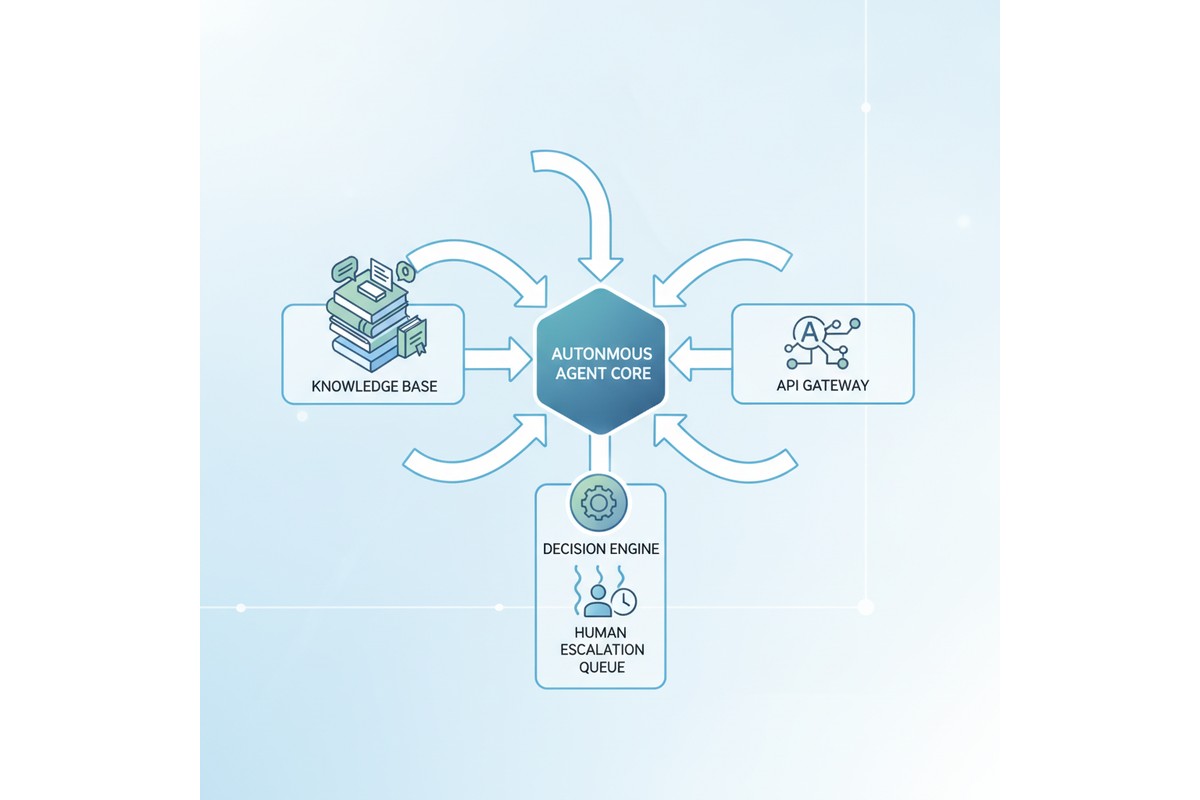
Copilot Studio autonomous agent system architecture

The gap between a chatbot and an autonomous agent comes down to three capabilities: the ability to invoke external systems without manual triggers, the capacity to make contextual decisions based on structured data, and the skill to maintain state across actions without restarting. Most Copilot Studio implementations lack these, which means their agents remain reactive and conversation-driven rather than autonomous and process-driven.

Building such an agent requires careful attention to custom actions, knowledge base integration, prompt engineering, and error handling. It’s not enough to wire up an API connection. You need to architect the agent so it knows when to act independently, how to handle failures gracefully, and when to escalate decisions to human reviewers.

Autonomous Agents vs. Interactive Chatbots

An interactive chatbot waits for user input at every step. The user submits a question, the chatbot responds, and the conversation ends until the next message arrives. Autonomous agents complete tasks without requiring user input at each decision point.

Consider a claims-processing agent. An interactive version might ask, “Does this claim qualify for expedited review?” and wait. An autonomous agent evaluates the claim against configured rules, makes the decision independently, updates the backend system, and notifies stakeholders automatically. The user’s role shifts from guiding each step to reviewing high-risk exceptions.

This design shift affects multiple aspects. First, the agent must understand when to act without prompts, requiring condition evaluation and decision trees beyond natural language understanding. Second, the agent must have authority to modify downstream data, introducing governance questions about which decisions need audit trails, human review, or policy-based automation.

Third, autonomous agents must recover from failure states gracefully. If an API call fails, an interactive chatbot tells the user it didn’t work. An autonomous agent must retry, escalate, or follow a fallback path based on business logic. Building robust error handling into the agent’s design from day one is essential.

Custom Actions and API Integration

Copilot Studio’s custom actions allow you to connect to external APIs and invoke them as part of the agent’s workflow. This is where many implementations falter. Teams configure basic actions without thinking through how the agent should behave when an API call fails, how long it should wait, or whether it should retry.

For a typical autonomous agent, you’ll define custom actions for the key external systems your agent needs to access. In a finance context, this might mean actions that query an ERP system to check if a purchase order exists, retrieve the purchasing history for a vendor, or post a transaction to the general ledger. In an HR context, you might define actions to look up employee records, check manager approval status, or send notifications through Teams or email.

Each action should include error handling at the definition level. Define which HTTP status codes are retryable (typically 502, 503, 504 and timeout errors), which represent permanent failures (400, 401, 403), and which might represent missing data (404). Configure exponential backoff for retries to avoid overwhelming the downstream API.

The other critical design choice is authentication. Copilot Studio supports connection references, which allow you to authenticate to external APIs securely. For a finance agent, you might use a service account that has specific permissions (read-only access to check PO status, but write access only to specific GL accounts). Never give your agent more permissions than it needs. If an agent is compromised, narrow permissions limit the damage.

Knowledge Base Integration

Most Copilot Studio agents include at least one knowledge base: a collection of documents or FAQs that the agent can reference when answering questions. For autonomous agents, knowledge bases serve a different purpose. Rather than storing answers to user questions, you use them to store decision logic, business rules, and process documentation that the agent uses to make autonomous decisions.

Consider a vendor onboarding agent. Instead of storing a knowledge base full of “How do I become a vendor?” FAQs, you store the actual business rules: vendors in certain geographic regions require additional tax documentation, vendors spending over a certain threshold need credit checks, and vendors in specific industries need compliance certifications. The agent retrieves these rules from the knowledge base, evaluates them against the vendor’s profile, and determines which documents need to be collected before onboarding can proceed.

This approach works because Copilot Studio’s retrieval-augmented generation (RAG) allows the agent to fetch relevant information from the knowledge base and incorporate it into its reasoning. The agent doesn’t just repeat back what’s in the knowledge base; it uses the information to make decisions.

For this to work reliably, your knowledge base content needs to be structured and current. Avoid storing conflicting information. If rule A says “credit checks are required for vendors over $100K” but another document says “credit checks are needed for vendors over $50K,” the agent’s behavior becomes unpredictable. Centralize your business rules in a single source of truth, and refresh the knowledge base whenever rules change.

Prompt Engineering for Autonomous Decision-Making

The system prompt enables autonomous action. A poorly written prompt produces an agent that refuses decisions or decides carelessly. A strong system prompt includes four elements: clear boundaries on what decisions it can make versus escalate, step-by-step decision logic (“Check vendor history using the vendor-lookup action. If they have 50 successful transactions in the past 12 months and average payment time under 30 days, they qualify for expedited payment”), guardrails for when to escalate (“If you cannot retrieve the vendor record after two retries, escalate with a detailed explanation”), and instructions for maintaining context (“Remember the vendor ID throughout. Do not make redundant lookup calls”). Specificity separates reliable agents from unreliable ones.

Error Handling and Escalation Workflows

Every autonomous agent will encounter situations where it can’t proceed. An API call fails. Required data is missing. A decision requires human judgment because it involves an exception to the normal rules. How the agent handles these situations determines whether it’s actually useful.

Design your escalation workflow first. Identify three or four common failure scenarios for your agent. For a claims processor, these might be: missing medical documentation, conflicting diagnoses from different providers, and claims that exceed specific dollar thresholds. For each scenario, define who reviews it, what information they need to see, and how they communicate their decision back to the agent (if it needs to resume).

In Copilot Studio, escalations typically flow through Power Automate. When your agent encounters a situation that requires human review, it creates a ticket or sends a notification through Teams, Power Automate, or a ticketing system. That ticket should include all the context the reviewer needs: the data the agent gathered, the decision it tried to make, and why it couldn’t proceed.

When the human reviewer makes a decision, it needs to flow back to the agent. This might happen through manual input in Teams, through an approval flow in Power Automate, or through a custom action that queries decisions from a database. The agent needs to know what the reviewer decided and continue processing if appropriate.

Test your error handling paths before going live. Don’t assume the happy path works and hope the error handling magically works when things go wrong. Deliberately trigger failures: kill an API connection, send bad data, create scenarios where required fields are missing. Observe how your agent behaves and refine the escalation logic.

Testing Autonomous Agents

Testing an autonomous agent is more complex than testing a chatbot because behavior depends on data state, API responses, and decision logic. Test at three levels: individual actions in isolation using Copilot Studio’s built-in testing, decision paths using test data with known outcomes, and escalation and error handling by simulating API failures and missing data. For each scenario, document expected behavior and verify the agent performs as designed.

Governance and Monitoring

Autonomous agents that make decisions without human review carry risk. Build governance into your design by logging every decision with the context that informed it. Set up monitoring dashboards that track autonomous decisions, escalations, errors, and human overrides. If humans override agent decisions more than 20 percent of the time, the agent’s logic needs refinement. Schedule periodic audits to verify correctness and identify patterns in mistakes, then update the system prompt or decision logic to correct them.

Conclusion

Building a true autonomous agent in Copilot Studio requires more up-front design work than building a chatbot, but the payoff is significant. Autonomous agents reduce manual work, ensure consistent decision-making, and allow organizations to scale processes without proportional increases in headcount. The key is treating autonomy as a design requirement from day one: architect your custom actions, knowledge base, prompts, and error handling specifically to support autonomous decisions, and build governance and monitoring to ensure those decisions stay accurate over time.

—

**About Routeget Technologies:** Routeget specializes in designing and implementing autonomous agents across the Microsoft cloud platform, helping organizations move beyond chatbots to truly autonomous processes. Our team brings hands-on experience building agents for finance operations, supply chain, HR, and customer service use cases, with a focus on robust error handling, governance, and measurable business outcomes.

#CopilotStudioAgents #AutonomousAgents #PowerPlatform #AIDecisionMaking #ProcessAutomation #Microsoft365AI #AgentDesign

#CopilotStudioAgents #AutonomousAgents #PowerPlatform #AIDecisionMaking #ProcessAutomation #Microsoft365AI #AgentDesign

Power Automate’s Desktop Flow Version Control Reached GA. It Isn’t the Git Workflow You Expected.

Solution architect reviewing a workflow version comparison on a monitor in a modern office

Last quarter, a client’s unattended invoice-processing bot broke in production after a maker “fixed” a selector on a Friday afternoon and republished without telling anyone. There was no way to see what had changed, no way to diff the working version against the broken one, and no way to roll back except by rebuilding the flow from a screenshot someone had taken three weeks earlier. That is not a hypothetical: it is the normal operating condition for most Power Automate desktop flow estates, and it is the exact gap Microsoft’s new desktop flow version control feature was built to close.

Desktop flow version control reached general availability on May 13, 2026, alongside a companion capability, compare flow versions, released the same day. A related feature, test subflows with test suite, followed in June 2026. Together they represent the most significant governance shift Power Automate for desktop has had since unattended runs first shipped, and for solution architects who have spent years explaining to security and change-management teams why their RPA estate has none of the source-control discipline their .NET or Java pipelines take for granted, this is worth understanding in detail, not just filing away as a changelog entry.

What Desktop Flow Version Control Actually Shipped, and What It Isn’t

The instinct when you hear “version control for desktop flows” is to picture Git: branches, merges, pull requests, a commit graph. That is not what Microsoft built, and treating it as a Git replacement will set you up for a bad rollout conversation with your development team. The underlying storage is Dataverse, not a distributed version-control system. Every draft and published version of a desktop flow is stored there in a compressed format, and Microsoft’s documentation is explicit that there is no configurable cap on how many versions accumulate, though versions older than twelve months are automatically purged, with the exception of the latest published version, which is retained indefinitely.

The model itself is linear rather than branching. A maker saves incremental changes as a draft, which has no effect on whatever is currently running in production. When the maker is satisfied, they publish, which creates an official version available for execution from the console or from a triggering cloud flow. Publish is deliberately disabled until the flow contains at least one enabled action, a small guardrail against accidentally shipping an empty shell. Every prior published version remains accessible as a read-only, previously-published entry, and a maker can restore any of those older versions, which pulls it back in as the current draft rather than silently reinstating it as production. That distinction matters operationally: restoring a version is a deliberate, two-step act, not a one-click rollback that could be triggered by accident.

There is no merge conflict resolution because there is no merging. If two makers edit the same flow concurrently, Microsoft’s guidance is essentially to coordinate manually and avoid overlapping edits, which is a meaningfully different discipline than what a development team accustomed to feature branches will expect. If your organization runs a centralized Center of Excellence model where a small number of makers own each flow, this limitation is mostly academic. If you have distributed ownership across multiple business units touching shared subflows, it is a real constraint you need to design around before you tell anyone this “solves” your governance problem.

Compare Flow Versions: What the Diff Actually Shows

The comparison tool is where this feature starts to feel like genuine engineering tooling rather than a glorified undo button. Selecting any two saved versions opens a read-only comparison view, with the designer locked from editing while the comparison window is open, and the most recent version by timestamp used as the reference baseline. The right-hand pane acts as a change filter: clicking an entry highlights the corresponding element directly in the flow canvas, so you are not scrolling through the whole flow trying to spot what moved.

The scope of what gets diffed is broader than a simple action-by-action list. It surfaces added, removed, and renamed subflows; changes to action configuration and parameters; variable type, name, and value changes; updates to UI element selectors, which is precisely the category of change that silently breaks unattended runs most often; and additions or removals of image assets used for image-based automation. For a team that has ever spent an afternoon trying to figure out why a previously stable flow started failing, having selector changes surface explicitly in a diff view is arguably the single most practically useful part of this release, more so than version control’s headline framing suggests.

Abstract illustration of workflow nodes with a version comparison branch and a passed test checkmark

Subflow-Level Testing Closes a Real Gap

Before this release, testing a Power Automate desktop flow meant running the entire parent flow end to end, because there was no supported way to validate a subflow’s logic in isolation. That forced teams into a familiar bad pattern: either skip meaningful pre-deployment testing because a full run is slow and environment-dependent, or build brittle manual test scripts outside the platform entirely. Test subflows with test suite, which reached general availability in June 2026, extends the existing desktop-flow test framework down to the subflow level, using the same behavior-driven-development structure, defined inputs, expected outputs, and assertions, that the parent-flow test suite already used.

This is not glamorous, but it is the piece that actually makes version control operationally useful rather than just a historical record. A version history without a way to verify that a candidate version behaves correctly before you publish it is an audit trail, not a quality gate. With subflow-level tests, a maker can validate the specific piece of logic they changed, independent of the surrounding flow, and get a pass or fail result recorded in the console and designer before that version ever reaches an unattended runtime. Combined with the comparison tool, you now have a workflow that resembles, even if it doesn’t literally replicate, a real pre-merge review: see exactly what changed, run a targeted test against the changed logic, then publish deliberately.

The Caveats That Change Your Rollout Plan

A handful of details in Microsoft’s documentation will change how you deploy this, and skipping them is how a promising governance feature turns into a support ticket. Self-healing, the capability that lets a desktop flow automatically repair a broken UI selector at runtime, is disabled whenever a flow is running from a saved draft rather than a published version. If your team gets in the habit of testing directly against drafts in a production-adjacent environment, understand that you have also quietly turned off a reliability feature you may be depending on elsewhere.

Enabling the feature requires the prvReadcomponentchangesetpayload privilege, which is included by default for the Environment Maker role but must be added explicitly to any custom security role your organization uses for minimum-permission configurations, a step that is easy to miss if your RPA governance model already deviates from Microsoft’s defaults. Import conflicts are another real-world snag: importing a published flow into an environment that already has an unpublished draft throws an error about an unmodified active context with an existing unpublished row, and the fix is to delete the pending draft before the import runs, which has implications for how you structure ALM pipelines that move flows between dev, test, and production environments. Finally, once version control is turned on for an environment, it cannot be turned off, which argues for enabling it first in a genuinely lower, disposable sandbox rather than directly in whatever environment your team currently treats as “dev.”

What This Means for How You Structure RPA Delivery

None of this makes desktop flow governance equivalent to modern application development practice, and it shouldn’t be sold to a client or an internal stakeholder that way. But it does close the two gaps that have made RPA estates genuinely hard to govern at scale: an unauditable history of what changed and when, and no supported way to test a piece of logic before it reaches an unattended machine. Teams that adopt both capabilities together, disciplined draft-and-publish habits paired with subflow tests run before every publish, will get a meaningfully more defensible answer the next time an auditor or a CISO asks how changes to an automation that touches financial or customer data actually get reviewed. Teams that enable version control and stop there, treating it as a rollback insurance policy rather than a discipline, will find it useful during an incident and largely irrelevant the rest of the time.

Routeget Technologies has been building governance frameworks around Power Automate and Power Platform estates for clients moving from pilot-stage RPA into production-scale automation, and the pattern above, comparison-driven review paired with subflow testing before publish, is close to what we now recommend as a baseline practice rather than an aspirational one. The tooling finally supports it; the discipline still has to be built deliberately.


#PowerAutomate #DesktopFlows #RPAGovernance #ALM #ProcessAutomation #EnterpriseAutomation