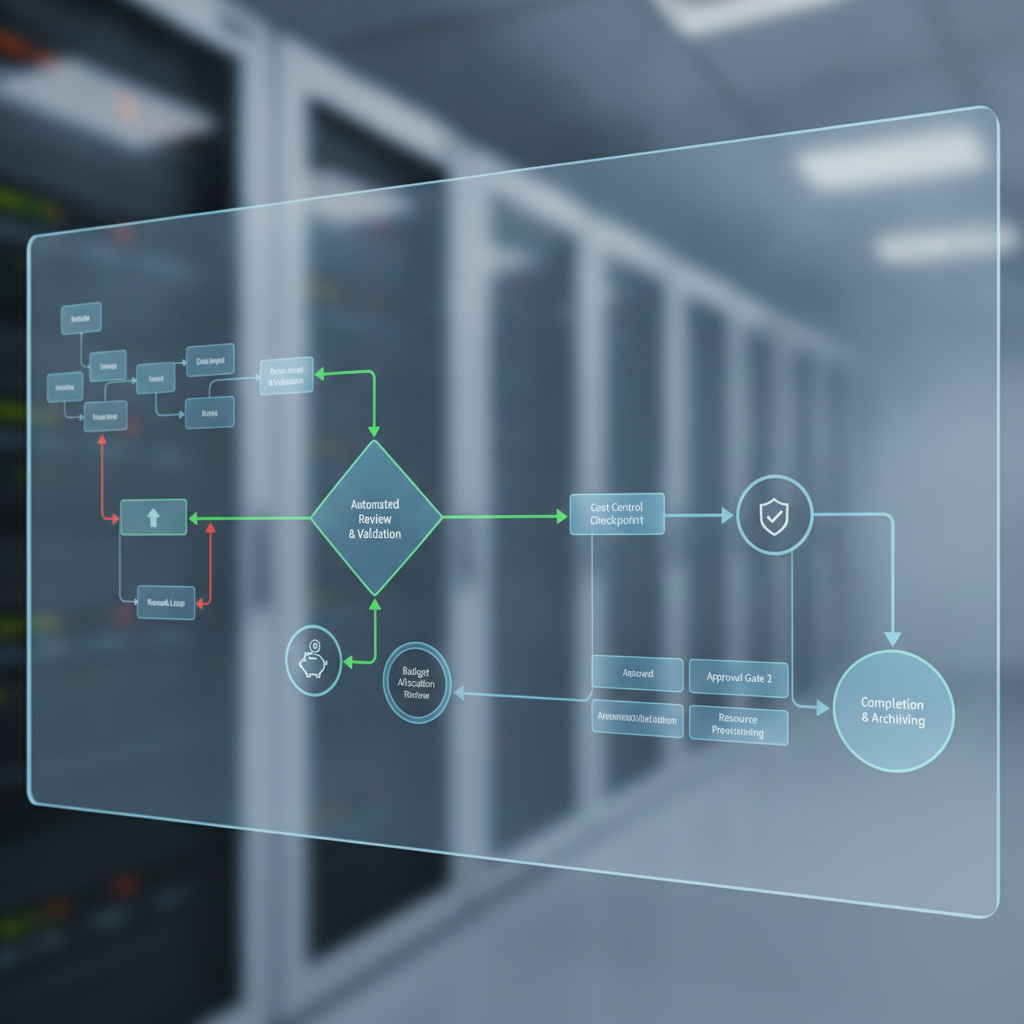
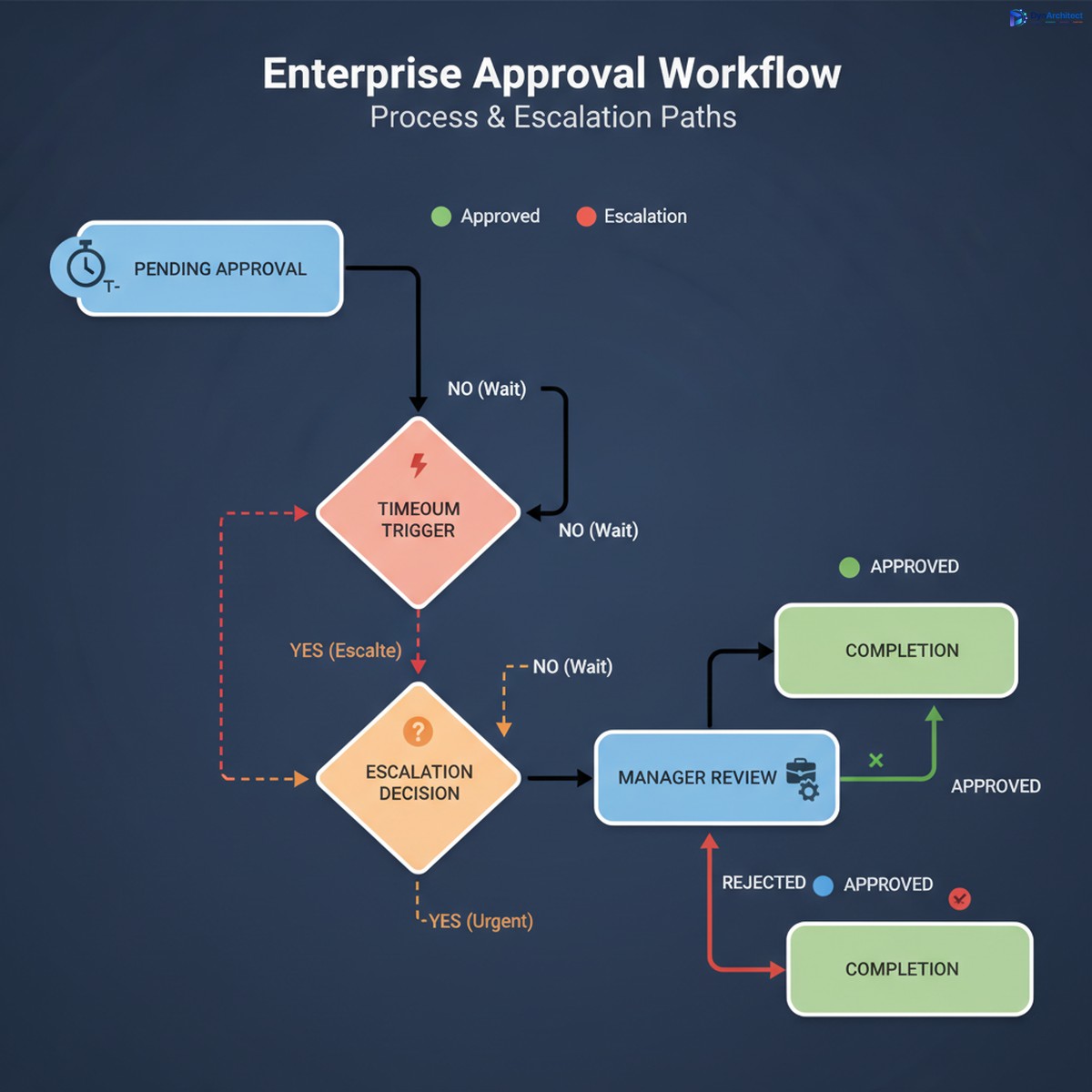
Implementing Resilient Notification Workflows in Power Automate: Retry Logic, Error Handling, and Fault-Tolerance Patterns

Your notification workflow fails silently. A customer inquiry approval message never reaches the approver. A procurement alert gets dropped during a network hiccup. Three hours pass before anyone realizes the system stopped processing critical notifications, and by then, a delivery is missed and a SLA is breached. The code in your cloud flow looks correct, but production behavior tells a different story.

This problem sits at the intersection of two competing demands in enterprise automation: business processes require notifications to be reliable and traceable, yet cloud environments are inherently unpredictable. Network connectivity varies. External APIs return unexpected status codes. Throttling limits kick in under load. Building notification workflows that survive these failures requires more than trying once and hoping for the best. It demands deliberate architecture.

The Three Failure Modes of Notification Workflows

Before designing a solution, recognize where notification workflows actually break. The first failure mode is transient: the external service is temporarily unavailable, throttled, or experiencing a brief network interruption. A retry seconds or minutes later often succeeds. The second failure mode is permanent: the email address is malformed, the Teams channel ID is invalid, or the service genuinely cannot fulfill the request. Retrying indefinitely wastes resources and masks the real problem. The third failure mode is cascading: a single failed notification blocks subsequent actions, leaving the workflow in an incomplete state with no trace of what happened or what remains to be done.

Cloud flows do not distinguish between these modes automatically. By default, a failed step halts execution and marks the entire flow as failed, creating one large bucket where transient network blips sit alongside configuration errors. Without explicit handling, you lose visibility into what failed, why it failed, and whether retrying makes sense.

Implementing Retry Logic That Works

Power Automate’s native retry policy is a starting point, not the complete solution. You can configure automatic retry on any action: wait a few seconds, then try again, up to a maximum of three attempts by default. This covers many transient failures cheaply without extra code. However, relying on this alone creates a false sense of reliability.

The first limitation is scope. Native retry applies to a single action, not to a logical workflow segment. If your notification workflow involves multiple dependent steps (compose a message, look up the recipient, send via Teams, log the result), a failure in any step halts the sequence. You need retry logic at a higher level, not just at individual actions.

The second limitation is visibility. Retries happen silently. If a notification retries three times and still fails, you have no built-in way to capture that failure, alert an operator, or escalate it for investigation. The flow concludes as failed, but the reason and the scope of impact remain opaque.

The practical approach combines native retry with explicit error handling. Start by enabling automatic retry on actions most likely to hit transient failures: HTTP requests, API connectors, and external service calls. Set retry to two or three attempts with exponential backoff (few seconds, then longer). This handles 80 percent of transient issues with zero extra configuration.

Then wrap critical sequences in a try-catch pattern using Power Automate’s scope and error handling features. A scope action groups related steps into a single unit. Configure the scope to run on success and to run on failure. If any step within the scope fails, the failure branch executes, allowing you to decide what happens next: retry the entire scope with exponential backoff, escalate to a backup notification method, log the failure with context, or all three.

Designing Fault-Tolerant Notification Pipelines

Enterprise notification workflows often have multiple delivery channels: primary email, then Teams, then SMS, then human escalation. Implementing this as a cascade, where each channel fails the entire workflow if it fails, is fragile. Instead, treat each channel as optional with explicit failure handling.

Use a parallel-branching pattern: attempt all channels concurrently, each with its own error handling scope. If email fails but Teams succeeds, the critical notification still reaches the recipient. Log successes and failures separately so you can trace what worked and what did not. This approach trades lower latency (parallel execution) for improved resilience (multiple chances to deliver).

For each notification channel, implement a three-tier escalation. First, attempt the primary delivery method with native retry enabled. Second, if that fails, attempt a backup channel (different service, different account, fallback mechanism). Third, if both fail, trigger an alert to your operations team with full context: who was being notified, what message failed, which channels were attempted, and what error was returned. Do not silently drop notifications that cannot be delivered.

Implementing Distributed Retry With Exponential Backoff

Simple retry on immediate failure is insufficient for workflows that encounter throttling or queue congestion. Distributed retry spreads retry attempts across time, reducing load spikes and improving success rates. The pattern is straightforward: if an action fails, wait a calculated interval (longer each time), then retry, rather than hammering the same endpoint repeatedly within seconds.

Implement this using a compose action that calculates backoff time based on retry count. After the first failure, wait 5 seconds. After the second, wait 15 seconds. After the third, wait 60 seconds. If you want to implement this correctly, the backoff should be exponential or follow a configurable schedule rather than linear, since most transient failures resolve within seconds while congestion-related failures require longer waits.

Store retry metadata (attempt count, last error, timestamp) in a variable or log table. This gives you visibility into how many times each notification was retried and when, which is essential for troubleshooting and for detecting patterns (are certain recipients always failing? is a particular channel consistently timing out?).

Centralized Failure Logging and Alerting

A notification workflow that fails silently is worse than no workflow at all. You must log every notification attempt with outcome, timestamp, error details, and context. Store this in a dedicated table (Dataverse, SQL database, or even a SharePoint list) so you can query it later to answer: which notifications failed? which users were affected? which channels are unreliable?

Structure your logging to capture: the intended recipient (email, Teams ID, mobile number), the notification content or message ID, the primary delivery method attempted, any fallback methods attempted, the final status (success or failed), the specific error (if any), retry count, and total time to resolution. With this data, you can identify patterns and respond proactively when a channel starts degrading.

Implement centralized failure alerting. If a notification fails after all retries are exhausted, trigger an alert to a monitored channel or queue immediately. Do not rely on someone checking a log table tomorrow. Critical notifications that fail require immediate human attention, and that attention must reach someone in minutes, not hours.

Testing Resilience Before Production

Resilient workflows are not magic. They must be tested. Create a test harness that simulates failures: configure a mock endpoint that returns throttling errors, configure a test recipient that always fails, inject errors into specific retry attempts and confirm that the workflow recovers. Test parallel channel execution by failing one channel and confirming the others still complete.

Run chaos testing. Temporarily disable a notification channel and confirm the workflow escalates to backups rather than giving up. Introduce network latency and confirm retry logic triggers appropriately. Test the logging system itself: if a failure occurs while trying to log a failure, can the workflow detect and handle that cascade?

Most importantly, test under load. A workflow that handles single notification failures gracefully may behave differently when processing 10,000 notifications an hour and throttling begins. Exponential backoff patterns that work fine for occasional failures can create thundering herds if applied uniformly across thousands of concurrent retries. Test at realistic scale before deploying.

Moving From Fragile to Reliable

Notification workflows are among the most important automations you build, yet they are often treated as afterthoughts. A flow that sends one message and halts on failure does not serve business processes. Building resilience into notification architecture takes deliberate design, but the investment pays dividends: customers receive approvals on time, teams get alerts they need to act on, and operations teams can trust that critical communications actually reach their destinations.

Routeget Technologies helps organizations architect Power Automate notification systems that are designed to succeed under real-world conditions, with comprehensive error handling, multi-channel delivery, and operational visibility built in from the start.


#PowerAutomateResilience #CloudFlowsErrorHandling #PowerAutomateRetryLogic #EnterpriseAutomation #NotificationWorkflows #PowerPlatformDevelopment #FaultTolerancePatterns #AutomationArchitecture #PowerAutomateIntegration #EnterprisePowerPlatform

Enterprise Power Automate Cloud Flow Architecture: Building Scalable, Fault-Tolerant Automation for Large Organizations

When your automation platform processes millions of records across hundreds of flows, architectural decisions that worked for single-tenant pilots stop scaling. A well-intentioned cloud flow that runs fine for 500 daily transactions suddenly times out when real-world volume hits 50,000. By that point, retrofitting the flow costs more in rework than planning it correctly from the start.

Enterprise-scale Power Automate success depends on how you architect cloud flows to handle the real constraints of production environments. This article walks through the technical patterns and architectural decisions that distinguish flows built for departments from flows built for organizations.

Understanding Power Automate Performance at Scale

Power Automate cloud flows run within Microsoft’s shared infrastructure, which means each flow competes for resources with thousands of others. Understanding these constraints is foundational to architecture decisions.

Cloud flows are subject to service limits: each request timeout is 120 seconds for timeout-based actions, and connector calls are rate-limited based on your tenant’s subscription level. In practice, this means a single action that fetches data from an external API might timeout if the API responds slowly or if your tenant is already near its daily API call quota. For flows running against large datasets, this isn’t a performance problem to ignore. It’s an architectural requirement to respect.

Parallel execution helps, but creates its own complexity. When a flow branches into multiple parallel paths (processing different records, querying different systems), all paths consume resources simultaneously. A flow that runs fine with five parallel branches might fail at scale when ten branches compete for connection pool capacity. Testing flows at the scale you’ll see in production isn’t optional. Testing at 10 percent of expected volume tells you almost nothing about what happens at full scale.

Designing for Throttling and Rate Limits

Every connector in Power Automate has throttling limits defined by the underlying service. Dynamics 365, SharePoint, SQL Server, and third-party APIs each have their own request rate limits. When a flow hits a rate limit, Power Automate queues requests, which introduces unpredictable latency. If your flow architecture assumes synchronous completion within 120 seconds, and the queue adds 30 seconds of waiting, you’ve just created a failure path in production.

Throttle-aware architecture separates flows that need tight timing from flows that can tolerate latency. A flow that needs to complete a transaction synchronously within a user-facing timeout should not depend on calling a heavily rate-limited external API. Instead, offload that call to an asynchronous flow that executes outside the user-facing window. Use variables to track state, store interim results in a database table, and let the user interface update asynchronously.

Connection throttling is often overlooked. If five flows all call the same Dynamics 365 instance simultaneously, they share a connection pool. Exhausting that pool makes subsequent calls queue. Flows that run on schedule should stagger their start times or use queuing patterns to avoid resource contention. Flows that respond to user actions should prioritize execution: a flow triggered by a user clicking a button deserves more resources than a background job that can run at 2 AM.

Error Handling and Graceful Degradation

The difference between a flow that fails silently and a flow that degrades gracefully is measurable in support tickets and customer escalations. Power Automate provides three essential error handling patterns that move flows from unreliable to production-ready.

The try-catch-finally pattern mirrors error handling in traditional programming. A “Try” scope contains actions that might fail. If any action fails, a “Catch” scope runs automatically via a run-after condition, logging the error, retrying if appropriate, or notifying an admin. A “Finally” scope runs regardless of success or failure, cleaning up resources or updating audit logs. This pattern ensures your flow has explicit paths for both success and failure, not just an unhandled exception that leaves flows stuck.

The terminate-with-status pattern goes further. Rather than letting flows end in an ambiguous state, use a boolean variable to track whether critical errors occurred. At the flow’s end, check this variable and call either “Terminate with Success” or “Terminate with Failure” to ensure the flow run reflects actual outcomes in Power Automate’s UI and accessible to downstream logic.

The flow-run-details-URL pattern addresses an operational reality: when flows fail at 2 AM, support teams need to diagnose quickly. Construct a clickable link to the flow run using the `workflow()` function, extracting the environment name, flow ID, and run ID. Include this link in failure notifications so troubleshooting starts with the actual error message, not a generic alert.

Beyond structured error handling, design for graceful degradation. Not every flow failure warrants stopping the entire process. If a flow is sending notifications to ten people and two notification endpoints are temporarily unavailable, the flow should succeed and log the partial failure, not terminate. Use apply-to-each with error handling per item, not all-or-nothing atomic operations.

Testing and Monitoring

Flows that go untested until production are flows that fail at scale. But testing Power Automate flows is different from testing traditional code.

Load testing matters. Run your flow against your target volume in a test environment and measure latency, resource consumption, and failure rates. A flow that completes in 30 seconds with 100 records might take three minutes with 10,000 records. Knowing this before production deployment prevents being surprised when performance degrades.

Timeout testing is often forgotten. Intentionally slow the connectors your flow calls (using test endpoints or delays) to confirm the flow handles the full 120-second timeout window gracefully. A flow that doesn’t handle timeout elegantly will fail without clear error messages.

Monitoring in production should track four dimensions: run count and duration (to spot performance regressions), failure rate and error reasons (to catch systematic issues before they cascade), connector throttling (to identify rate limit pressure), and flow run details (to enable rapid troubleshooting). Don’t wait for users to report that flows are broken. Monitor proactively and alert when metrics deviate from baseline.

Common Architectural Pitfalls

Over-parallelization creates resource contention when branches should run serially. Tight timeouts that don’t account for throttling guarantee failures at scale. Flows that suppress errors “for now” with conditional paths quickly become maintenance nightmares. Missing audit trails make post-mortem analysis impossible.

The most expensive architectural mistake is discovering at deployment time that a flow can’t handle the actual data volume or concurrency levels. This is solved not through clever coding, but through honest testing at scale before release.

Moving to Production

Production-ready Power Automate flows share common traits: explicit error handling with clear failure paths, timeout assumptions aligned with real throttling behavior, monitoring that exposes issues before they impact users, and testing that matches real volume. These aren’t optional refinements. They’re the difference between flows that work for pilots and flows that keep working when users depend on them.

Building at this level requires thinking beyond the flow canvas. It requires understanding the constraints of shared infrastructure, designing for failure, and respecting the difference between happy-path testing and production resilience. That’s how organizations scale from department-level automation to enterprise-grade solutions.


*Routeget Technologies helps enterprise organizations architect Power Automate solutions at scale, designing for the realities of production environments and building automation that survives the transition from pilot to platform.*


#PowerAutomateArchitecture #CloudFlows #EnterpriseAutomation #PowerPlatformDevelopment #FaultTolerance #PowerAutomatePerformance #MicrosoftAutomation

Tags: #PowerAutomateArchitecture #CloudFlows #EnterpriseAutomation #PowerPlatformDevelopment #FaultTolerance #PowerAutomatePerformance #MicrosoftAutomation

Building a Sustainable Power Automate Center of Excellence: Governance Without Gridlock

Most organizations that deploy Power Automate do so without any governance structure, then scramble to build one after their citizen developers have created hundreds of inconsistent, poorly monitored automations. The result is predictable: Shadow IT runs deeper, cloud costs spike unpredictably, and IT eventually responds with policies so rigid that the business stops creating new flows and the platform stalls. The tension between speed and control is real, but it does not require choosing one or the other.

A Center of Excellence for Power Automate is simply a structured approach to decision-making: who gets to build flows, what patterns we enforce, how we measure success, and where funding comes from. It is not bureaucracy. It is the difference between a platform that serves business strategy and one that devolves into a cost and compliance liability.

Why Power Automate Centers of Excellence Matter

Before the Cloud, automation meant capital expenditure on licensed tools, IT-owned build processes, and a multi-year return-on-investment narrative. Business units that needed a workflow change submitted requests and waited. Power Automate inverted this model. Individual contributors with no coding background can now build workflows that connect dozens of applications, move data, and execute business logic in minutes rather than months.

This democratization is valuable, but it creates an organizational problem. Without structure, a 500-person organization can quickly accumulate 2,000 flows built by people who do not know about each other’s work, who use different authentication patterns, who log into different cloud environments, and who have no shared understanding of which flows are business-critical versus experimental prototypes. When a flow breaks at 2 a.m. on a Saturday, no one knows why, because the person who built it is no longer with the company. When your automation bill spikes 40% month over month, you cannot explain why, because no one is tracking flow execution patterns.

A CoE provides visibility, standardization, and accountability without becoming an approval bottleneck. It articulates the expectations around flow design, security, data governance, and cost management so that developers can move quickly and IT can sleep at night.

Organizational Structure: Three Patterns That Work

The most effective CoE structures share a common shape: a small central team responsible for standards, enablement, and governance; a distributed network of power users embedded within business units; and clear escalation paths from edge to center.

The central team should be small, typically two to four people, depending on organization size. Its role is not to build flows for every department, but to establish patterns, mentor citizen developers, and make the hard calls when conflicts arise. The team member should come from IT but ideally have business acumen—someone who understands both technical architecture and why the business cares about a given workflow. This role often seats best as a product manager rather than a pure engineer, since the job is as much about communication and change management as it is about technical decisions.

Distributed power users are the actual force multiplier. These are individuals in Finance, Operations, Sales, or HR who have invested time learning Power Automate deeply and can build flows, mentor peers, and serve as the first line of triage when flows behave unexpectedly. Organizations often resist this approach because it seems to decentralize control, but experience shows the opposite. When power users exist within their own departments, flows get built faster, are maintained more reliably, and align better with business context because the builder is embedded in the problem domain. The CoE provides training, sets standards, and holds power users accountable to those standards, but does not make them beg for permission.

Escalation paths matter. If a power user wants to build a flow that touches sensitive financial data, or that orchestrates changes across multiple critical systems, the CoE should have a clear, lightweight process to evaluate the design and approve the build. This is not a veto gate; it is a collaborative design review. Most escalations resolve quickly because the CoE can flag real risks (poor error handling, missing audit trails, data loss exposure) and guide the builder toward a more robust solution. The business gets its flow, and IT maintains reasonable confidence in the architecture.

Governance Framework: Standards Without Bureaucracy

Power Automate governance typically fails in one of two directions: it is either too loose (anything goes, leading to chaos), or too tight (everything requires approval, leading to workarounds). A functional governance framework sits between these poles.

Start with flow taxonomy. Define three categories: production flows (business-critical, require naming conventions and documentation), standard flows (departmental automations that follow company patterns but do not require escalation), and experimental flows (one-off tests and prototypes, deleted after 90 days if not promoted to production). This simple taxonomy lets developers understand expectations immediately and lets IT focus oversight where it matters most.

Establish naming and documentation standards. This sounds bureaucratic but solves real problems. A flow named “P001” tells you nothing. A flow named “Sales-QuoteApproval-VP” immediately tells you the business domain, the function, and the approval level. When a developer checks the existing flows, they can find related work and avoid duplication. When you need to disable a set of flows for maintenance, you can identify all related ones quickly. Documentation templates (one sentence describing what the flow does, the owner contact, the systems it touches) take five minutes to complete and dramatically reduce the knowledge burden when the builder leaves the company.

Data governance rules must be specific to your risk profile. Most organizations should establish: flows that touch Dynamics 365 Finance or HR systems must use managed identities and log all operations to an audit table; flows that create, update, or delete records in any production environment must include error handling and notification to the flow owner on failure; flows that move data between systems must encrypt data in transit and log the data movement event; flows that exceed 50 executions per day should be reviewed quarterly to confirm they still provide business value. These rules are not arbitrary IT gatekeeping; they reflect the business’s real exposure to data loss, compliance violations, and cost overruns.

Funding and Stakeholder Alignment

A CoE that must justify its existence through a departmental budget burns out quickly. Instead, embed the cost in the automation project’s business case. When Finance proposes an automation that will save a manual process, the total cost of ownership includes the CoE’s contribution: the design review, the mentoring, the platform licensing, the monitoring and ongoing optimization. This aligns incentives. If the CoE is too restrictive or slow, the business unit pushes back and the executive sponsor hears about it. If the CoE is too permissive and allows bad automations to proliferate, the operations team sees costs rise and demands better governance.

Create a steering committee that meets quarterly, including representatives from major business units, IT leadership, finance, and compliance. This committee reviews CoE performance (how many flows, what categories, cost per automation), approves new platform features or tool purchases, and arbitrates any major policy changes. This keeps the CoE accountable and prevents it from becoming an insular IT function that loses touch with business needs.

Measuring Success

Set metrics that matter. Track the number of production flows, the average time to build a flow once it is approved, the ratio of successful executions to failures, and the cost per automation. More importantly, survey power users and business unit leaders annually on whether Power Automate is enabling them or creating friction.

A CoE that has reduced flow-creation cycle time from eight weeks (under an old IT process) to three days and has achieved 99.5% execution reliability is delivering value even if it has not eliminated every risk. The point is not perfection; it is enabled business agility coupled with acceptable risk.

Common Pitfalls

Organizations often stumble on a few predictable mistakes. The first is creating a CoE without giving it authority. If the central team cannot enforce naming standards or require design reviews, it becomes an advisory body that developers ignore, and you have gained nothing except an extra cost center. The second is over-investing in tooling before you have clarity on the actual problem. Buy governance software only after you understand what you are trying to govern; often a simple spreadsheet and a SharePoint site suffice. The third is confusing CoE with “IT approval committee.” Governance should be about patterns and risk management, not about gating every creative idea because IT wants to be in control. If a power user’s approach is sound but unconventional, approve it and monitor it; do not reject it because it does not match a template.

Finally, do not neglect the change management dimension. If your organization has relied on Shadow IT for years, a CoE that suddenly requires visibility into all flows will face resistance. Plan for a communication campaign, early wins that demonstrate the value of transparency, and meaningful involvement of power users in CoE decisions from the start.

Moving Forward

Building a Center of Excellence for Power Automate is not a one-time project; it is an organizational capability that evolves as the platform matures. Start by identifying your central team and your first set of power users. Define basic standards around flow naming, documentation, and data handling. Establish your escalation path for production flows. Monitor adoption, cost, and execution reliability. Adjust based on what you learn.

Organizations that take this approach typically report that Power Automate adoption accelerates within six months, not because governance is loose, but because developers know the expectations and can move with confidence. Costs become predictable because you understand what is running and why. And the platform becomes a genuine strategic asset rather than a shadow IT liability.

Routeget Technologies has implemented Power Automate Centers of Excellence for financial services, healthcare, and manufacturing clients, and the patterns that work remain consistent: clear governance that focuses on risk and enablement rather than control; distributed power users who are vested in the business outcome; and a small central team that removes obstacles and sets standards rather than approving every decision. The structure is less important than the commitment to treat Power Automate as a managed platform rather than a free-for-all tool.

#PowerAutomateCOE #FlowGovernance #LowCodeGovernance #ProcessAutomation #AutomationStrategy #EnterpriseAutomation

Automated Workflow Sprawl in Power Automate: How Finance Leaders Can Prevent the Cost Explosion Most Orgs Don’t See Coming

Finance leaders across enterprise organizations are discovering an uncomfortable truth about Microsoft Power Automate adoption: the platform that promises to eliminate manual work through low-code automation often becomes a hidden cost center once it reaches production scale. The culprit is not a licensing pricing error, but a governance gap. Organizations typically purchase Power Automate licenses based on anticipated user volume or a modest number of bots, only to find themselves facing exponential cost growth within 12 to 18 months. The reason is straightforward: they underestimated the volume of workflows that would be built, and they failed to establish guardrails to manage that sprawl before it spiraled into a compliance and budget problem.

The early signs appear incremental. A department discovers Power Automate and begins automating quote-to-invoice workflows. Finance enablement builds flows for journal entry generation. HR creates robotic process automation bots to automate onboarding. Each initiative seems reasonable in isolation, delivering clear ROI. But without a centralized finance governance model that tracks cost per flow, enforces retry limits, and manages premium connector usage, cloud flow sprawl becomes the default outcome. By the time the Finance organization sees the full bill, they are managing hundreds of flows across dozens of teams, with no clear visibility into which flows are actually delivering value and which are simply consuming API request capacity.

This article is written for finance leaders, IT directors, and CFOs who are either experiencing unexpected Power Automate cost overruns or want to prevent them as they scale.

The Real Cost of Power Automate is Not on the Price Sheet

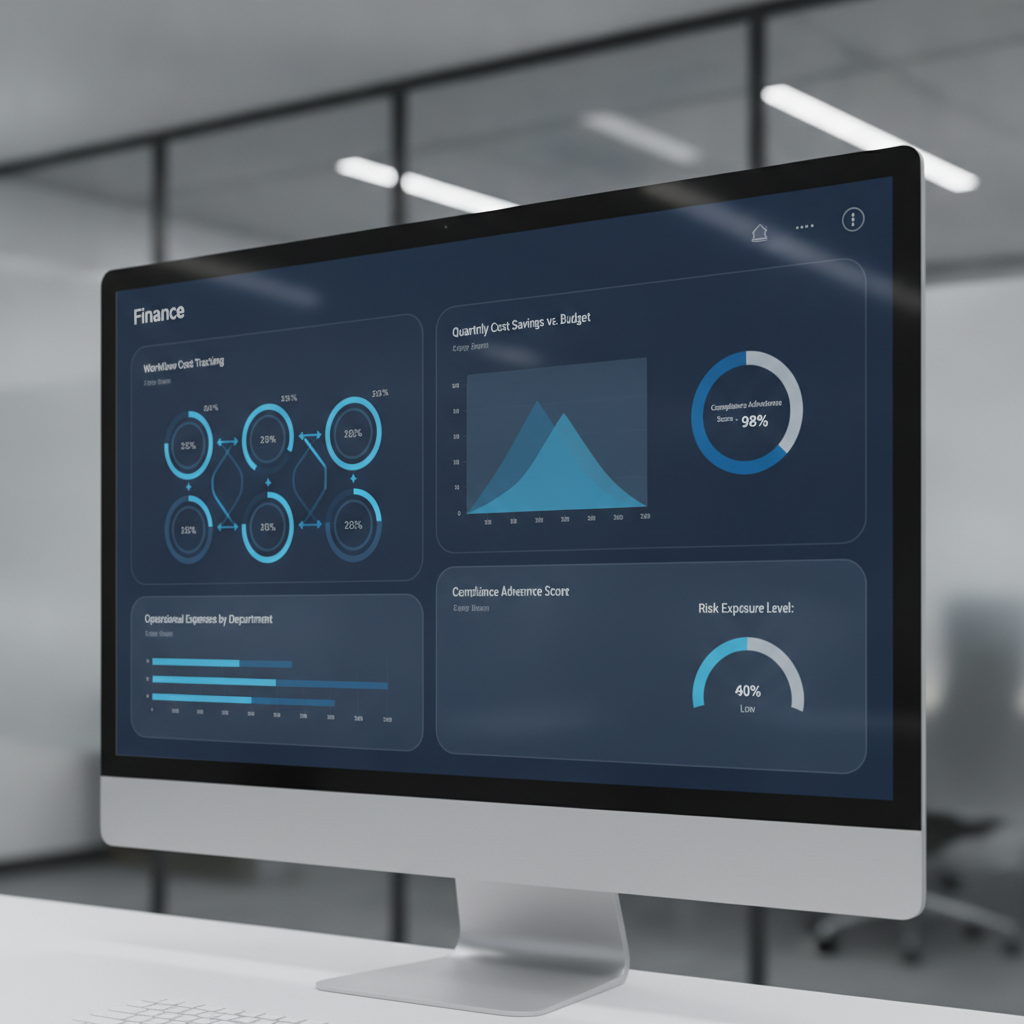
Finance dashboard showing cost controls and governance metrics for Power Automate workflows

Microsoft’s published Power Automate pricing tells one story: Premium plans at $15 per user per month, Process bot licenses at $150 to $215 per bot per month, plus premium connector fees for integrations to enterprise systems like Salesforce, SAP, or ServiceNow. That is the anchor price, but not the total cost most organizations experience at scale.

Research consistently shows that real total cost of ownership runs 3 to 5 times the base licensing cost once automation moves beyond pilot into operational deployment. The gap exists because several cost drivers are not visible at purchase time and are not managed as line items on initial procurement requests.

First is the cost of premium connectors. The base Power Automate license includes only standard connectors. Flows that touch enterprise systems like Salesforce, Oracle, ServiceNow, or SAP require a premium connector license, adding per-user or per-flow costs on top of the base plan. In a large organization with dozens of automation use cases spanning Finance, Operations, and Sales, premium connector usage becomes a pervasive second licensing layer.

Second is the API request limit structure. Each Power Automate license allocation includes a fixed daily quota of API requests. Flows running at high frequency can exhaust this quota, causing throttling and execution failures. Organizations can either optimize flows to use fewer API calls (expensive in consultant time) or purchase additional request capacity (expensive in licensing). This cost is often discovered in production, not in the procurement phase.

Third is the cost structure of unattended robotic process automation. Finance automation commonly involves unattended desktop flows, which require a separate Process bot license ($150 to $215 per bot per month). Organizations frequently begin with a pilot of two or three bots, then discover they need five, ten, or twenty bots to handle all manual processes suitable for RPA. Each additional bot is a monthly recurring cost, and growth correlates directly with how aggressively the organization pursues automation.

Fourth is the cost of monitoring and governance infrastructure. Cloud flows fail. Bots encounter edge cases and incomplete data. At large scale, organizations need investment in monitoring solutions, error logging platforms, and governance tooling, all adding to total cost of ownership beyond the base license itself.

How Workflow Sprawl Becomes a Budget Crisis

Workflow automation governance and approval gates visualization

The progression from pilot to sprawl follows a predictable pattern, rooted in organizational behavior and governance gaps rather than platform limitations.

Phase one is the success case. A team automates a business process with measurable results. Leadership approves expansion. Teams that see the success submit their own automation requests.

Phase two is the consumption phase. Requests accelerate. Finance IT or a Center of Excellence builds flows and bots in higher volume, focused on delivery velocity and process improvement, not cost per flow or API efficiency. An organization that budgeted for twenty flows but ended up with eighty viewed this as adoption success, not flagged as a problem. The assumption is that cloud platforms are cheap and infinite, an assumption that fails at the scale of hundreds of concurrent flows in a large enterprise.

Phase three is the recognition phase. The monthly software license bill arrives 50 percent higher than expected. Or the Power Automate admin console shows API request quotas being exhausted regularly. Or an audit discovers flows created without any approval process.

Phase four is the governance crisis. By this point, the organization has hundreds of flows and dozens of bot licenses in production. Rationalizing them is difficult because so many business processes depend on them. The choices become unattractive: freeze new automation requests, accept runaway costs, or undertake an expensive flow rationalization effort.

The real cost of sprawl extends beyond license fees. It includes operational overhead, wasted automation effort on redundant processes, API request overages, and governance overhead of auditing that volume of automation.

Governance Framework to Prevent Sprawl

The solution is not to avoid Power Automate, but to impose financial discipline and governance from the start, before sprawl becomes endemic.

First, establish a flow cost tracking model. Assign ownership, purpose, and monthly cost estimate to every flow and bot. Track actual API request consumption per flow and per team. Without cost visibility at that level of granularity, finance leaders cannot see which automation initiatives deliver value and which simply consume capacity.

Second, establish approval and prioritization gates for new automation. Every new flow or bot should be evaluated for business value, estimated cost per transaction, expected API request volume, and whether the outcome duplicates existing automation.

Third, set hard API request budgets by department. Monitor consumption weekly, not monthly. If a team approaches its budget, trigger a review of flow efficiency and consolidation opportunities.

Fourth, enforce premium connector policies. Premium connectors should be approved before flows are built, not discovered during cost review. Understand whether standard alternatives exist and whether business value justifies incremental licensing cost.

Fifth, consolidate flows quarterly or semi-annually. Identify redundant flows, consolidate similar use cases, and retire flows no longer delivering value. Treat the flow library as a managed asset.

Sixth, implement centralized monitoring and governance tooling. The Power Automate Center of Excellence starter kit or third-party platforms provide visibility into flow execution, failure rates, and API request consumption.

Where Finance Leaders Should Start

For CFOs and Finance Leaders evaluating or scaling Power Automate, the path starts with one decision: treat automation as a governed, cost-tracked initiative, not a free-for-all low-code platform.

If your organization is in pilot phase, establish governance discipline now, so it is part of the adoption story from the start rather than a late-stage correction.

If your organization is already in sprawl phase, the priority is visibility. Audit your current environment. Understand what flows are running, what they cost, what they do, and whether they deliver value. Execute a consolidation program to reduce complexity and cost.

Power Automate is genuinely powerful and genuinely cost-effective when deployed in a disciplined way. The platform is not the problem. Governance is. Finance leaders who treat it as a governed, tracked, and financially accountable initiative will see the promised ROI. Those who treat it as a free platform for teams to automate whatever they want will see costs spiral.

The choice, and the accountability, starts with Finance.


Routeget Technologies helps enterprise organizations design and implement governance frameworks for Power Platform and enterprise automation, ensuring automation delivers ROI at scale rather than becoming a hidden cost center.

#PowerAutomateGovernance #WorkflowAutomation #FinanceTransformation #PowerPlatform #CostOptimization #EnterpriseAutomation #Microsoft365Automation

Building Approval Loops in Power Automate That Don’t Fall Apart

Enterprise approval workflow dashboard with timeout and escalation management

Approval workflows sound simple in theory. Send a request, wait for response, move forward based on outcome. But somewhere between the proof of concept and production reality, approval loops accumulate failures so quietly that six months pass before anyone notices half your approvals never closed, escalations silently vanished, and the finance team is manually reworking approvals that should have auto-completed.

The gap between what you design and what survives in production typically opens in three places: timeouts on waiting responses that get no notification when they expire, escalation logic that triggers but assumes someone is actually paying attention to a hand-passed email, and no mechanism to detect an approval that was submitted but never reached the assigned approver. Each failure is small enough to dismiss as a one-off, but they compound quickly enough that the flow looks broken even when it is technically working.

This isn’t a flaw in Power Automate itself. Approval loops are possible and reliable at scale. But they require specific configuration practices that most documentation glosses over because they fall outside the “happy path” that gets written up in tutorials. The actual production implementation involves setting constraints, monitoring for stuck states, and building reminders and escalations that stay responsive even when people are unavailable.

The Three Failure Modes in Approval Workflows

Power Automate approval workflow state transitions showing timeout and escalation paths

The first and most common failure mode is the timeout without escalation. By default, an approval waits forever for a response. In production, this means a request sits in someone’s inbox for days while they’re in meetings, on vacation, or simply overwhelmed. The approver eventually rejects or approves, but by then the original requestor has stopped watching and other parts of the process have already stalled or errored out. Better practice: set an explicit timeout on the approval action itself. Don’t wait indefinitely. Use a 48 or 72 hour window depending on your business, and when the window closes without a response, trigger an escalation workflow instead of just abandoning the request.

The second failure mode is silent escalation that nobody actually sees. When a primary approver times out, many designs hand off to a backup approver or manager using a simple email notify step. But email is not a reliable alert mechanism inside workflows. The backup approver doesn’t get a red flag in their task management system. The approval request lands in a folder with two hundred other emails. Three days later, the request is still pending, nobody knows why, and you discover by accident that the backup approver never saw it. Better practice: when escalating, create an explicit escalation record in a tracked system, assign it directly to the backup approver through Power Automate’s assignment or Outlook task creation, and log the escalation so you can report on it later.

The third failure mode is the orphaned approval that disappears from tracking. An approver response can fail for reasons outside your control: the response email is misrouted, the approval action times out before the response is processed, or the flow logic that handles the response encounters an error and doesn’t retry. In many cases, there’s no notification that the approval failed, so it simply stays pending forever. The requestor has moved on, the approver thinks they responded, and your audit log shows a request that was submitted but never resolved. Better practice: attach a completion deadline to every approval, separate from the timeout. If the approval has not resolved by that deadline, automatically resolve it with a fallback decision, and send a notification that escalation occurred.

Implementing a Production-Ready Approval Loop in Power Automate

Start with an approval request that includes a deadline. Use a scheduled cloud flow as a failsafe trigger that runs daily or every six hours and checks for approvals that have been pending longer than expected. If one is found, resolve it by creating a comment on the original record and moving the process forward with a fallback decision (typically approval, pending manager review). This sounds like it adds complexity, but it prevents the entire workflow from silently stalling.

The approval action itself should have a timeout set explicitly, measured in hours rather than days. In Power Automate’s approval action settings, set “Time Out In” to a value between 24 and 72 hours depending on your business rhythm. When that timeout is reached, the flow should not just stop. Instead, trigger an escalation workflow that routes to a backup approver, creates an escalation record, and sends an alert through a more reliable channel than email, such as a Teams message or a specific task in a project management system.

The escalation workflow should include logic that detects whether the backup approver is available. If the backup is out of office, the flow should identify an additional escalation level and continue upward. This requires maintaining a clear escalation path in a configuration table or SharePoint list, but it is the only way to ensure approvals don’t stall when a single person is unavailable.

Every approval flow should also log its state transitions to a tracking table. Each time an approval is requested, assigned, escalated, responded to, or timed out, write a record to a SharePoint list or a database table that includes the approval ID, the approver name, the action taken, the timestamp, and the outcome. This log is what makes it possible to audit the flow later, identify patterns of missed approvals, and debug failures when they occur. Without logging, you’re flying blind.

Error Handling and Retry Logic

Approval flows should not fail silently. Every step that might fail, particularly the send approval action itself, should have an error handler configured. If the approval action fails, the flow should retry once or twice before escalating. Use the retry policy built into cloud flows to automatically retry transient failures without adding extra steps.

The response handling section is where most approval flows fail operationally. The flow waits for a response, the response arrives, and then the flow tries to parse it or use it in a downstream action. If the response object is malformed or the downstream action fails, the approval is left in an inconsistent state. Configure error handling around the response processing step, and if it fails, log the failure, notify an administrator, and set the approval to a manual-review state so it can be handled by a human.

Avoiding the Common Pitfalls

Many approval flows make the mistake of embedding the approval timeout in a scheduled flow instead of setting it on the approval action itself. This doubles the complexity and introduces a race condition where the approval might respond after the timeout is checked but before the scheduled flow resolves it. Set the timeout on the approval action, not as a separate scheduled check.

Another pitfall is using the approval owner’s email address to send escalations. Escalations should be routed through the actual escalation workflow, not as emails copied to a backup. If the email approach is used, the escalation has no status tracking and no way to know whether the backup actually saw it.

A third pitfall is assuming that because an approval was sent, it was received. Always add a receipt confirmation step after sending the approval, using a follow-up flow or a scheduled check that verifies the approver’s status. Some organizations send a brief Teams message or Slack notification alongside the approval to ensure the approver knows to check their Outlook task.

Monitoring and Iteration

Once an approval loop is deployed, the real work begins. Run reports monthly on approval cycle times, timeout rates, escalations, and manual overrides. If escalations are happening more than 5% of the time, the timeout is too aggressive or the approval routing is misaligned. If timeouts rarely occur, you may be able to shorten the window to speed up the overall flow.

Track approvers who consistently miss deadlines and consider reassigning their responsibilities. Some approval routing that looks good on paper breaks down in practice because a particular approver is overloaded or rarely checks their tasks.

Approval loops are a reliable part of any organization’s workflow infrastructure when they are designed with production reality in mind. But that reality is messier than most documentation acknowledges. The difference between a working approval flow and one that silently breaks down is attention to timeouts, escalations, and monitoring from the start.

About Routeget Technologies: Routeget specializes in enterprise transformation across the Microsoft cloud ecosystem, including Power Automate automation and workflow optimization. Organizations looking to build production-ready approval systems that scale reliably can engage our consulting team to design governance frameworks, implement monitoring patterns, and optimize approval workflows for their specific operational needs.


#PowerAutomateApprovals #ApprovalWorkflows #EnterpriseAutomation #PowerAutomate #WorkflowOptimization #DynamicsIntegration

Power Automate API Request Limits Are Losing Their Grace Period. Most Dynamics 365 Integrations Aren’t Ready.

IT solutions architect reviewing a Power Automate integration flow dashboard on a large screen in an enterprise operations center

A finance operations lead watching a month-end close dashboard notices something odd: a batch of vendor invoices has been sitting in “waiting” status for eleven minutes. No error message, no failed run in the flow history, just silence. The Power Automate flow pulling records from Dataverse and pushing them into a document management system hasn’t crashed. It has been throttled, and almost nobody on the team knows that’s a distinct condition from a broken flow, let alone what triggers it or how long it lasts.

That gap in understanding is about to matter a lot more. Microsoft has spent the better part of the last two years quietly running Power Automate’s API request limits in what it calls a transition period: real entitlements exist on paper, actual enforcement is loose, and most tenants are running well past their official limits without consequence. That period has a stated end point, tied to when Power Platform Request usage reporting in the admin center reaches general availability, plus roughly six months. Teams that built integration flows assuming today’s permissive behavior is permanent are going to have an uncomfortable conversation with their CIO when enforcement tightens.

What Actually Counts Against Your Limit

The mental model most consultants carry around, that a “request” means one API call your flow makes to an external system, undersells how quickly limits get consumed. Every action in a flow run generates a request, whether it succeeds or fails. An action sitting inside an Apply to Each loop generates one request per item processed, not one request for the loop as a whole. Pagination counts separately too, so a flow that queries a Dataverse table with 50,000 rows and pages through results in batches of 5,000 will burn ten requests just retrieving data it hasn’t done anything with yet.

This is where a lot of Dynamics 365 integration flows get into trouble without anyone noticing during development. A flow built and tested against a sandbox environment with a few hundred sales order records behaves completely differently once it hits production volume. The loop that ran fine at fifty iterations in UAT becomes five thousand iterations against the live sales order table, and each of those iterations might trigger two or three downstream actions: a lookup, a field update, a notification. What looked like a lightweight automation in testing turns into a five-figure daily request count in production.

Developer typing on a laptop with a blurred Power Automate cloud flow diagram visible on a monitor in the background

The Power Automate API Request Limits That Actually Matter

Most teams that have heard of Power Automate throttling think of it as a single ceiling. In practice there are three separate mechanisms stacked on top of each other, and hitting any one of them produces the same frustrating symptom: a flow that stops making forward progress without a clear error.

The first is the 24-hour rolling entitlement, calculated per user for licensed accounts and pooled at the tenant level for application users and service accounts. A user with a standard Power Automate per-user or Dynamics 365 base license carries a 40,000 request allowance in any trailing 24-hour window. That window doesn’t reset at midnight. It slides continuously, so a burst of activity at 9 a.m. today is still being counted against the limit at 9 a.m. tomorrow, and any requests left unused simply expire rather than carrying forward.

The second is a five-minute burst cap of 100,000 requests, which applies independently of how much daily entitlement remains. A flow with a per-flow Process license carrying 250,000 requests per day can still get throttled mid-run if it tries to push too many of those requests through in a short burst, which is exactly what happens when an integration flow processes a large batch without pacing itself.

The third, and the one with the sharpest teeth, is continuous throttling over time. A flow that stays in a throttled state for 14 consecutive days gets turned off automatically. It can be reactivated, but if the underlying request pattern hasn’t changed, it cycles back into the same state. For a scheduled integration that runs nightly, two weeks of silent throttling is enough time for a genuinely broken process to look, from the outside, like nothing more than a slow week.

Architecting Integrations to Survive Enforcement

None of this means Power Automate is a poor choice for high-volume Dynamics 365 integration work. It means the flows need to be built with request budgets in mind from the start rather than retrofitted after a production incident.

Batching is the highest-leverage change available to most teams. Dataverse supports native batch operations that bundle multiple create, update, or delete operations into a single request rather than issuing one request per record. A flow rewritten to batch 100 record updates into a handful of batch calls instead of 100 individual actions can cut its request footprint by well over ninety percent for that segment of the process. This is worth doing even on flows that aren’t currently near any limit, because the same restructuring also improves run time and reduces the blast radius of a partial failure.

Child flows deserve more architectural attention than they usually get. Breaking a single monolithic flow into a parent that orchestrates and several children that each handle a bounded chunk of work makes it possible to apply concurrency control and pacing at a granular level, rather than trying to throttle an entire end-to-end process as one unit. Concurrency control settings on the trigger, often left at their defaults, are one of the more overlooked levers here: capping how many instances of a flow can run in parallel directly controls how fast it can burn through the five-minute burst allowance.

Trigger conditions matter more than most teams treat them. A flow that fires on every Dataverse row update and then checks conditions inside the flow body has already consumed a trigger execution and started accumulating requests before it decides the record doesn’t actually need processing. Moving that filtering logic into the trigger condition itself, evaluated before the flow run even starts, is free request savings that costs nothing to implement.

For flows that are genuinely high-volume by design, such as a real-time integration syncing order status between D365 Finance and Operations and an external logistics platform, the right answer may simply be licensing rather than architecture. A per-flow Process license carries a 250,000 request daily allowance on its own, and multiple Process licenses can be stacked on a single flow inside a solution, each one adding another 250,000 to that flow’s dedicated entitlement. For tenants not ready to change licensing, the Power Platform Request Capacity add-on adds 50,000 requests per 24 hours per pack and can be layered onto existing entitlements as a stopgap.

Get Ahead of the Reporting Gap

The Power Platform admin center’s usage reports are still catching up to the complexity of the limits themselves. Current reporting covers Power Automate API requests reasonably well but doesn’t yet give a clean picture of Dataverse, Copilot Studio, or Power Apps consumption in the same view, which means a team relying solely on the admin center dashboard is working from an incomplete picture of its actual request footprint. Until that reporting matures, the more reliable approach is instrumenting flows directly: logging request counts per run, watching for 429 responses in run history, and treating a spike in run duration as an early warning sign rather than waiting for a flow to get switched off.

Organizations we’ve worked with on Dynamics 365 and Power Platform integration architecture are increasingly building request budgeting into the design review for any flow expected to process more than a few thousand records a day, the same way they’d review a database query plan before it goes to production. That habit is worth adopting now, while the transition period still offers room to fix a poorly architected flow before enforcement makes the fix urgent instead of optional.


#PowerAutomate #APIRequestLimits #DynamicsIntegration #PowerPlatformGovernance #IntegrationArchitecture #EnterpriseAutomation

Power Platform Pipeline Extensibility Changes Where Your ALM Logic Actually Lives

Solution architect reviewing an abstract Power Platform pipeline deployment diagram with an approval gate on an office monitor at dusk

Every Power Platform admin who has rolled out native pipelines has run into the same wall eventually. The tool is genuinely good at the thing it was built for: letting a maker click “Deploy” and move a solution from development to test to production without learning Azure DevOps YAML or touching a service connection. What it has never let you do, until recently, is put anything of your own between that click and the deployment itself. No custom validation before export. No compliance check before the artifact lands in production. No way to route the actual deployment through a service principal instead of the requester’s own credentials. If your organization needed any of that, the answer was to abandon native pipelines and rebuild the whole thing in Azure DevOps or with the community powerplatform-actions GitHub Action, which meant losing the low-friction maker experience that was the point of adopting pipelines in the first place.

Microsoft’s new Power Platform pipeline extensibility closes that gap, and it is worth understanding closely before you turn it on, because the way it is built shapes what kinds of governance logic actually belong there versus what still belongs in your existing CI/CD stack.

What pipeline extensibility actually adds

The mechanism is Dataverse business events. Power Platform pipelines now emit a defined set of events at each stage of a deployment, and a Power Automate cloud flow sitting in the pipelines host environment can subscribe to those events using the ordinary “When an action is performed” trigger from the Dataverse connector, filtered to the Power Platform Pipelines category. There are seven distinct trigger actions you can hook: OnDeploymentRequested, OnApprovalStarted, OnApprovalCompleted, OnPreDeploymentStarted, OnPreDeploymentCompleted, OnDeploymentStarted, and OnDeploymentCompleted. OnDeploymentRequested fires for every deployment regardless of configuration, and it is also the event a pre-export validation flow hooks into. The approval and pre-deployment pairs only fire at all if you have explicitly enabled the corresponding extension on that pipeline stage, so a flow subscribed to OnPreDeploymentStarted simply never triggers on a stage that hasn’t turned that gate on.

Abstract illustration of a deployment pipeline with connected stage nodes and a glowing approval gate checkpoint

Three gated extension points sit on top of those events, and each one solves a different problem rather than being interchangeable flavors of “add a step.”

Pre-export step required

This is the earliest gate. It runs when a maker submits a deployment request, before the solution is even exported from the development environment, and Microsoft explicitly restricts it to the first stage of a pipeline. That restriction matters more than it looks: once a solution is exported, the pipelines host stores the managed and unmanaged artifacts and promotes that exact same artifact version through every downstream stage. You cannot re-validate or re-export at stage two. Whatever checks you want to run against the source solution, whether that is a naming convention audit, a check for unmanaged customizations, or a call out to an internal change-approval system, have to happen here or not at all.

Is delegated deployment

This extension solves a different problem: identity. Without it, a deployment runs under the requesting maker’s own credentials, which means that maker needs write access to the target environment, something plenty of organizations are uncomfortable granting to anyone below an admin for a production environment. With delegated deployment enabled, the actual deployment executes under a service principal instead, provided the pipeline stage owner is configured as an owner of that service principal in Microsoft Entra ID. A maker can request a production deployment, get it approved, and never hold standing access to production at all. For any organization that has been quietly working around this by granting temporary System Administrator roles before a release and revoking them after, this is the fix that was missing.

Pre-deployment step required

This is the last gate, sitting after approval but before the deployment itself actually runs. This is where a final compliance check, a change-freeze lookup, or a notification to a service desk system belongs, since by this point the deployment has already been approved and you are deciding only whether to let it proceed right now.

Wiring a flow to it

The implementation pattern is consistent across all three extension points. You build a cloud flow, in the pipelines host environment specifically, not in the source or target environment, using the Dataverse “When an action is performed” trigger. You can scope the trigger with a condition against the output parameters, most commonly DeploymentPipelineName or DeploymentStageName, so that a single environment does not end up running every organization’s validation logic against every pipeline. Inside the flow you run whatever logic you need, whether that is a call to an external API, an approval step, or a lookup against a governance table, and then you close the loop with an unbound Dataverse action: UpdatePreExportStepStatus or UpdatePreDeploymentStepStatus, setting the status to 20 for complete or 30 for rejected. A rejected status fails the deployment outright rather than leaving it hanging. Microsoft ships two sample managed solutions, Pipelines Extensibility Samples and Delegated Deployment Samples, that are worth installing into a sandbox before writing anything from scratch, since they cover the trigger and action wiring in a working state rather than leaving you to reverse-engineer the output parameter names from documentation alone.

Where this still falls short

None of this replaces a pro-code CI/CD pipeline, and it is not trying to. The GitHub Actions and Azure DevOps paths for Power Platform still own the things extend pipelines does not touch: source-controlled solution unpacking, automated build artifacts, and static analysis through the solution checker as part of a pull request gate rather than a deployment-time check. What extend pipelines is actually good at is inserting governance and identity control into the maker-facing deployment experience without forcing every citizen developer through a developer-grade toolchain. That is a narrower job, and treating it as a replacement for real CI/CD is the most common mistake I would expect teams to make with it.

The rollout itself is also worth flagging before you plan around it. As of this writing, Microsoft describes the extensibility features as being rolled out gradually across regions, and existing pipelines customers may need to update the Power Platform pipelines application through the admin center before any of these extension points even appear as configurable options. If you check a production tenant and do not see pre-export or pre-deployment settings on a pipeline stage, that is very likely a rollout or update-application issue rather than a misconfiguration on your end, and it is worth confirming with a support ticket before spending time debugging a flow that was never going to fire.

A few operational limits are worth building into your rollout plan from day one. Personal pipelines created inside make.powerapps.com cannot be extended at all, so any governance requirement has to be enforced through admin-managed pipelines rather than personal ones if extensibility is part of the plan. Makers retain the ability to cancel a pending deployment request, but only up until the final deployment step actually begins, so a long-running pre-deployment check is not a safe place to also expect cancellation to work cleanly. And because the exported artifact is immutable across all downstream stages, any pre-export validation logic needs to be strict enough to catch problems before that first export, since there is no second chance to reject the same artifact further down the pipeline.

For architects who have been asking Microsoft for a middle ground between no governance hooks at all and abandoning native pipelines for full Azure DevOps, this is that middle ground. At Routeget Technologies, this is the kind of gap our Power Platform ALM engagements have historically had to close with custom Azure DevOps pipelines, so a native option worth building a proof of concept around is a welcome addition. It is worth testing against a sandbox pipeline now, both to get ahead of the regional rollout and to work out which of the three extension points actually maps to a real control gap in your current deployment process, rather than instrumenting all three reflexively the day they become available in your tenant.


#PowerPlatformPipelines #ALMGovernance #DataverseBusinessEvents #DelegatedDeployment #PowerAutomate #EnterpriseAutomation

Copilot Studio’s Computer-Use Agents Reached GA. The Success Rate Numbers Change the Business Case.

IT director reviewing an automated workflow diagram representing a Copilot Studio computer-use agent on an office monitor

A mid-market distributor recently asked its systems integrator for a quote to build an API bridge between Dynamics 365 Finance and Supply Chain Management and a fifteen-year-old carrier portal that still runs on a browser-only interface with no exposed endpoints. The estimate came back at nine weeks and roughly $160,000, most of it spent reverse-engineering a login flow and a rate-lookup screen that changes its layout every few months. That is the exact situation Copilot Studio’s computer-use agents were built for, and as of May 2026 the capability is generally available rather than sitting in preview. For CIOs and finance leaders staring down a similar quote, the real question is not whether the technology works. It is whether it works well enough, cheaply enough, and safely enough to replace a project that would otherwise sit on the backlog for a year.

What Copilot Studio’s computer-use agents actually shipped at GA

Computer-use agents let a Copilot Studio agent operate a website or a Windows desktop application the way a person would: it takes a screenshot, reasons about what it sees, and performs a click, a keystroke, or a scroll toward a stated goal. Microsoft’s own release announcement frames the GA milestone around three changes from the preview period. Credential handling moved to a more secure model rather than embedding logins in flow definitions. Customers can now choose which underlying model drives the automation, matching cost and capability to the task instead of accepting a single default. And the agents became noticeably more resilient to interface drift, meaning a carrier portal that shuffles a form field or repositions a button is less likely to break the automation outright, which was one of the most common failure modes reported during preview.

The feature also picked up a genuinely useful architectural change: computer-use steps can now be embedded inside a broader workflow, so a single process can call an API where one exists, fall back to UI automation where it does not, and route to a human approver for anything in between. That matters more than it sounds. Most legacy integration problems are not purely API-less. They are mixed: part of the process has a clean endpoint, and the rest lives behind a login screen nobody ever modernized. Treating the whole thing as one workflow, rather than stitching together a separate RPA tool alongside your Power Automate flows, is the actual value proposition here, not the novelty of an AI agent clicking buttons.

Where the economics genuinely hold up

Computer-use agents consume Copilot Credits on a per-step, consumption-based model that behaves differently from the message-based billing most finance teams are used to budgeting for a chatbot or a Copilot assistant. A short, well-scoped task, four or five steps to submit a form and confirm a result, costs relatively little. A long, branching process with dozens of steps run at volume compounds that cost quickly, and it compounds faster than most stakeholders expect the first time they see a monthly bill next to the pilot’s success metrics. Before approving a production rollout, finance and IT should jointly model the cost of the highest-volume scenario at expected transaction counts, not just the demo scenario that sold the project internally.

The honest framing for a CFO is this: computer use is not a general substitute for API integration. It is a tool for the specific and fairly common case where an API genuinely does not exist, the vendor has no near-term plan to build one, and the manual alternative already costs real headcount hours. A carrier rate portal, a government filing site, an old third-party benefits administrator, or an internal legacy application from a prior ERP era are the kinds of targets where the math works. Where an API does exist, even a mediocre one, direct integration through Power Automate or a custom connector will almost always be cheaper per transaction than UI automation, because every additional screenshot and reasoning step adds cost that a direct API call skips entirely. Teams that reach for computer use as a default integration pattern rather than a fallback tend to discover this the expensive way, usually around the second or third month of production volume.

Abstract illustration of an AI agent cursor navigating connected software interface panels

The success-rate numbers that should set expectations

Microsoft’s own documentation is candid about current performance limits, and CIOs evaluating this for anything beyond a narrow pilot should read those numbers before committing a budget line. Web-based tasks succeed at roughly 80 percent, which sounds reasonable until you consider what a one-in-five failure rate means for a process running hundreds of times a day. Desktop application tasks succeed at closer to 35 percent, a gap wide enough that any deployment targeting a legacy Windows client, rather than a browser, should be scoped as an assisted process with human review built in from day one, not a lights-out automation. Dropdowns, date pickers, and custom UI widgets remain a known weak point, along with the tendency for an agent to loop when the screen state does not match what it expected.

None of this makes the technology unusable. It makes it a tool that needs the same production discipline any automation project requires: define what “success” means precisely, measure it against a real baseline rather than a demo, and build an escalation path for the failures you know are coming rather than treating them as edge cases to handle later. Microsoft’s own guidance recommends exactly this, pointing customers toward least-privilege service accounts, restricted execution environments, and human-in-the-loop review for lower-confidence steps as standard practice rather than optional hardening.

Governance decisions to make before the first production run

Three controls matter most for a finance or IT leader signing off on this. First, audit logging: computer-use sessions can send activity to Microsoft Purview under a dedicated operation type, independent of the standard Dataverse logs the agent keeps by default, and that Purview trail is what most compliance teams will want to see before approving a process that touches financial data or customer information. Second, session visibility: every run generates a step-by-step activity map with screenshots, timestamps, and a list of exactly which credentials and which sites or applications were accessed, which gives an auditor something concrete to review rather than a black box. Third, and easy to overlook, the allow-list that restricts which sites an agent can act on does not fully prevent navigation to sites outside that list, only actions on non-allow-listed pages. Organizations with strict data-boundary requirements should layer network-level controls, such as browser policies through Microsoft Intune, on top of the Copilot Studio allow-list rather than treating the allow-list as a complete boundary on its own.

Administrators who decide the risk profile is not yet acceptable for a given environment can disable computer use entirely at the environment level, or disable the hosted browser specifically at the tenant level, through the Power Platform admin center. That toggle is worth knowing about even for organizations planning to adopt the feature, since it gives a clean way to pilot in one environment while keeping it off everywhere else until the governance model is proven.

What this means for the next integration decision

The distributor with the fifteen-year-old carrier portal does not need to choose between a $160,000 custom build and doing nothing. A scoped computer-use pilot against that single portal, with success measured honestly against the current 80 percent web success rate and a human reviewer catching the rest, is a legitimate middle option that did not exist eighteen months ago. The mistake would be extending that same logic to every integration gap on the roadmap without first checking whether each one is genuinely API-less or just under-prioritized. For organizations already running Dynamics 365 Finance and Supply Chain Management or Business Central alongside a Power Platform footprint, the practical next step is an inventory: which manual, screen-based processes actually lack an API path, which have one nobody built yet, and which are high-enough volume that the per-step credit cost changes the calculation entirely. Routeget Technologies has been walking clients through exactly that kind of inventory as computer-use agents move from a curiosity into a line item finance actually has to approve, and the pattern holds across industries: the technology is real, the cost model rewards precision over enthusiasm, and the governance controls exist, but only for the teams who turn them on before the first production run rather than after an incident.


#CopilotStudio #ComputerUseAgents #AgenticAI #RPAGovernance #EnterpriseAutomation #DynamicsFinanceOps

Power Automate’s Desktop Flow Version Control Reached GA. It Isn’t the Git Workflow You Expected.

Solution architect reviewing a workflow version comparison on a monitor in a modern office

Last quarter, a client’s unattended invoice-processing bot broke in production after a maker “fixed” a selector on a Friday afternoon and republished without telling anyone. There was no way to see what had changed, no way to diff the working version against the broken one, and no way to roll back except by rebuilding the flow from a screenshot someone had taken three weeks earlier. That is not a hypothetical: it is the normal operating condition for most Power Automate desktop flow estates, and it is the exact gap Microsoft’s new desktop flow version control feature was built to close.

Desktop flow version control reached general availability on May 13, 2026, alongside a companion capability, compare flow versions, released the same day. A related feature, test subflows with test suite, followed in June 2026. Together they represent the most significant governance shift Power Automate for desktop has had since unattended runs first shipped, and for solution architects who have spent years explaining to security and change-management teams why their RPA estate has none of the source-control discipline their .NET or Java pipelines take for granted, this is worth understanding in detail, not just filing away as a changelog entry.

What Desktop Flow Version Control Actually Shipped, and What It Isn’t

The instinct when you hear “version control for desktop flows” is to picture Git: branches, merges, pull requests, a commit graph. That is not what Microsoft built, and treating it as a Git replacement will set you up for a bad rollout conversation with your development team. The underlying storage is Dataverse, not a distributed version-control system. Every draft and published version of a desktop flow is stored there in a compressed format, and Microsoft’s documentation is explicit that there is no configurable cap on how many versions accumulate, though versions older than twelve months are automatically purged, with the exception of the latest published version, which is retained indefinitely.

The model itself is linear rather than branching. A maker saves incremental changes as a draft, which has no effect on whatever is currently running in production. When the maker is satisfied, they publish, which creates an official version available for execution from the console or from a triggering cloud flow. Publish is deliberately disabled until the flow contains at least one enabled action, a small guardrail against accidentally shipping an empty shell. Every prior published version remains accessible as a read-only, previously-published entry, and a maker can restore any of those older versions, which pulls it back in as the current draft rather than silently reinstating it as production. That distinction matters operationally: restoring a version is a deliberate, two-step act, not a one-click rollback that could be triggered by accident.

There is no merge conflict resolution because there is no merging. If two makers edit the same flow concurrently, Microsoft’s guidance is essentially to coordinate manually and avoid overlapping edits, which is a meaningfully different discipline than what a development team accustomed to feature branches will expect. If your organization runs a centralized Center of Excellence model where a small number of makers own each flow, this limitation is mostly academic. If you have distributed ownership across multiple business units touching shared subflows, it is a real constraint you need to design around before you tell anyone this “solves” your governance problem.

Compare Flow Versions: What the Diff Actually Shows

The comparison tool is where this feature starts to feel like genuine engineering tooling rather than a glorified undo button. Selecting any two saved versions opens a read-only comparison view, with the designer locked from editing while the comparison window is open, and the most recent version by timestamp used as the reference baseline. The right-hand pane acts as a change filter: clicking an entry highlights the corresponding element directly in the flow canvas, so you are not scrolling through the whole flow trying to spot what moved.

The scope of what gets diffed is broader than a simple action-by-action list. It surfaces added, removed, and renamed subflows; changes to action configuration and parameters; variable type, name, and value changes; updates to UI element selectors, which is precisely the category of change that silently breaks unattended runs most often; and additions or removals of image assets used for image-based automation. For a team that has ever spent an afternoon trying to figure out why a previously stable flow started failing, having selector changes surface explicitly in a diff view is arguably the single most practically useful part of this release, more so than version control’s headline framing suggests.

Abstract illustration of workflow nodes with a version comparison branch and a passed test checkmark

Subflow-Level Testing Closes a Real Gap

Before this release, testing a Power Automate desktop flow meant running the entire parent flow end to end, because there was no supported way to validate a subflow’s logic in isolation. That forced teams into a familiar bad pattern: either skip meaningful pre-deployment testing because a full run is slow and environment-dependent, or build brittle manual test scripts outside the platform entirely. Test subflows with test suite, which reached general availability in June 2026, extends the existing desktop-flow test framework down to the subflow level, using the same behavior-driven-development structure, defined inputs, expected outputs, and assertions, that the parent-flow test suite already used.

This is not glamorous, but it is the piece that actually makes version control operationally useful rather than just a historical record. A version history without a way to verify that a candidate version behaves correctly before you publish it is an audit trail, not a quality gate. With subflow-level tests, a maker can validate the specific piece of logic they changed, independent of the surrounding flow, and get a pass or fail result recorded in the console and designer before that version ever reaches an unattended runtime. Combined with the comparison tool, you now have a workflow that resembles, even if it doesn’t literally replicate, a real pre-merge review: see exactly what changed, run a targeted test against the changed logic, then publish deliberately.

The Caveats That Change Your Rollout Plan

A handful of details in Microsoft’s documentation will change how you deploy this, and skipping them is how a promising governance feature turns into a support ticket. Self-healing, the capability that lets a desktop flow automatically repair a broken UI selector at runtime, is disabled whenever a flow is running from a saved draft rather than a published version. If your team gets in the habit of testing directly against drafts in a production-adjacent environment, understand that you have also quietly turned off a reliability feature you may be depending on elsewhere.

Enabling the feature requires the prvReadcomponentchangesetpayload privilege, which is included by default for the Environment Maker role but must be added explicitly to any custom security role your organization uses for minimum-permission configurations, a step that is easy to miss if your RPA governance model already deviates from Microsoft’s defaults. Import conflicts are another real-world snag: importing a published flow into an environment that already has an unpublished draft throws an error about an unmodified active context with an existing unpublished row, and the fix is to delete the pending draft before the import runs, which has implications for how you structure ALM pipelines that move flows between dev, test, and production environments. Finally, once version control is turned on for an environment, it cannot be turned off, which argues for enabling it first in a genuinely lower, disposable sandbox rather than directly in whatever environment your team currently treats as “dev.”

What This Means for How You Structure RPA Delivery

None of this makes desktop flow governance equivalent to modern application development practice, and it shouldn’t be sold to a client or an internal stakeholder that way. But it does close the two gaps that have made RPA estates genuinely hard to govern at scale: an unauditable history of what changed and when, and no supported way to test a piece of logic before it reaches an unattended machine. Teams that adopt both capabilities together, disciplined draft-and-publish habits paired with subflow tests run before every publish, will get a meaningfully more defensible answer the next time an auditor or a CISO asks how changes to an automation that touches financial or customer data actually get reviewed. Teams that enable version control and stop there, treating it as a rollback insurance policy rather than a discipline, will find it useful during an incident and largely irrelevant the rest of the time.

Routeget Technologies has been building governance frameworks around Power Automate and Power Platform estates for clients moving from pilot-stage RPA into production-scale automation, and the pattern above, comparison-driven review paired with subflow testing before publish, is close to what we now recommend as a baseline practice rather than an aspirational one. The tooling finally supports it; the discipline still has to be built deliberately.


#PowerAutomate #DesktopFlows #RPAGovernance #ALM #ProcessAutomation #EnterpriseAutomation

Power Automate Error Handling: Why Your Approval Flows Fail Silently

IT professional reviewing a Power Automate approval workflow dashboard on a monitor in a modern office

A finance manager submits a purchase requisition through a Power Automate approval flow on a Friday afternoon. The flow’s run history shows a clean green checkmark. Nobody gets an error notification. Nobody gets paged. And nobody notices that the requisition is still sitting in “Waiting for approval” three weeks later, because the connection that created the flow belonged to an employee who left the company the same week the flow ran. The flow didn’t crash. It just stopped being able to reach the approver, and the default configuration had no mechanism to tell anyone that had happened. This is the gap that Power Automate error handling, done properly, is supposed to close, and it’s a gap that most approval flows in production today were never built to cover.

This is the failure mode that makes approval flows uniquely dangerous among Power Automate use cases. A malformed SharePoint update or a broken HTTP call to an external API tends to fail loudly and immediately, inside a run that someone is watching because they just triggered it. An approval flow fails quietly, often days or weeks after it started, to an audience that has already moved on to something else. Power Automate error handling for approval-heavy processes has to account for that gap between when something breaks and when a human would otherwise notice, and the out-of-the-box behavior of a cloud flow does very little to close it.

What Actually Breaks an Approval Flow

Before building an error-handling pattern, it helps to know what you’re actually defending against, because the failure modes for approvals are more specific than generic connector errors. Microsoft’s own troubleshooting documentation for flow approvals names two conditions directly tied to the connection that created the approval: ApprovalConnectionOwnerNotFoundInGraph, which fires when the account that owns the Approvals connection has been deleted from Microsoft Entra ID, and ApprovalConnectionOwnerNotEnabledInGraph, which fires when that account still exists but has been disabled. Both are common consequences of ordinary offboarding, and both will stop an approval flow cold with no warning to the requester or the intended approver.

A second cluster of failures involves timing. ActionTimedOut occurs when a “Wait for an approval” action’s configured timeout expires before a decision is made, and OperationTimedOut shows up on longer-running processes that exceed the platform’s maximum flow run duration of thirty days. Left at their defaults, many approval actions simply run until someone acts on them or the flow hits that ceiling, which means a request can sit unresolved for weeks without the flow itself ever reporting an error, because from the platform’s perspective nothing has technically gone wrong yet.

A third category sits at the connection layer more broadly: InvalidConnection and ConnectionAuthorizationFailed errors, which surface when a password reset, an expired OAuth token, or a Conditional Access policy change invalidates the credentials a flow depends on. Microsoft’s guidance on broken connections is blunt about the underlying cause, noting that connections tied to individual user accounts break whenever that account’s password changes or the account is disabled, which makes personal connections a structurally poor choice for anything running unattended in production.

Why Power Automate Error Handling Doesn’t Happen by Default

The reason none of this shows up as a visible incident is that Power Automate’s default run-after configuration only wires one path: continue if the previous action succeeded. There’s no branch for failure unless you explicitly add one, and there’s no notification unless you explicitly build it. A flow that fails at the approval step simply shows a red icon in a run history that, realistically, nobody is checking unless they already suspect something is wrong. For a process with dozens or hundreds of concurrent approval instances across an organization, that’s not a monitoring gap. It’s the absence of monitoring entirely.

This is precisely the situation Microsoft’s own coding guidance addresses through Run After configuration, and it’s worth treating as the non-negotiable baseline for any approval flow that matters to the business, not an optional hardening step reserved for critical systems.

Abstract illustration of a broken chain link being reconnected by gears, representing Power Automate error handling and recovery

Building the Scope-Based Try, Catch, Finally Pattern

The standard architecture for this, and the one Microsoft’s guidance points toward, wraps the core approval logic in three scopes. The first, a “Try” scope, contains the actual approval request, the wait, and whatever downstream actions execute once a decision comes back. The second, a “Catch” scope, is configured through Run After to execute when the Try scope has failed, has timed out, or was skipped, which are the three states that indicate something went wrong rather than simply concluded. Inside the Catch scope, the result() expression combined with a Filter Array action pulls the specific error code and message out of the failed action, which is what lets a notification say “the approval connection owner was removed from Entra ID” instead of a generic “something failed.”

A third scope, often labeled “Finally,” is configured to run after the Catch scope regardless of outcome, meaning after it has succeeded, failed, timed out, or been skipped. This is where cleanup and status logging belong, because it executes whether the Try scope worked cleanly or not, which keeps your audit trail complete instead of only recording the failure path.

For notification and logging, Microsoft’s guidance is explicit that Application Insights should be the default target rather than writing to a SharePoint list or a Dataverse table with a dedicated logging flow, both because it avoids the performance cost of excessive custom logging and because it consolidates monitoring across many flows into one queryable location instead of scattering it flow by flow. The workflow() function is useful here too, since it returns the run’s ID and environment metadata, which you can use to build a direct link to the failed run and drop it straight into a Teams message or an email to whoever owns the process.

Hardening the Approval Action Itself

Beyond the general try/catch pattern, approval actions specifically benefit from three adjustments that are easy to skip during initial flow design. First, set an explicit timeout on the “Wait for an approval” action rather than leaving it at the default, and pair that timeout with a Run After branch that fires on “has timed out.” That branch should escalate, typically to a backup approver, a manager one level up, or a distribution list, rather than simply notifying that the deadline passed and leaving the request unresolved. Second, configure retry policies on the connector actions surrounding the approval, using an exponential backoff pattern (an initial interval that doubles or triples with each attempt, up to a defined cap) so that transient throttling from Microsoft Graph or Dataverse doesn’t get treated the same as a permanent failure.

Third, and most important given how often it’s the actual root cause, move production approval flows off personal connections entirely. A connection reference paired with a service principal, rather than a connection tied to whoever happened to build the flow, means the flow keeps running when that person changes teams, resets a password, or leaves the company, which directly eliminates the ApprovalConnectionOwnerNotFoundInGraph and ApprovalConnectionOwnerNotEnabledInGraph failure modes described earlier. This is also an offboarding process question as much as a technical one: whoever manages user departures needs to know which production flows depend on that person’s connections before the account gets disabled, not after an approval silently stalls.

Testing Failure Paths on Purpose

None of this is verified until you’ve actually watched it fail. Before a flow goes into production, it’s worth deliberately breaking it: disable a test account that owns a connection and confirm the Catch scope actually catches it, set an artificially short approval timeout and confirm the escalation branch fires, and revoke a connection mid-run to see whether the resulting error surfaces somewhere a person will actually see it. Teams tend to build the happy path carefully and assume the failure path will behave the same way, which is rarely true the first time it’s tested. A flow checker pass and a clean test run through the approval itself tell you almost nothing about how the flow behaves once something upstream goes wrong, and that’s exactly the scenario a production approval process will eventually face.

The Takeaway

Approval flows fail differently than most other automation, because the cost of an undetected failure compounds silently while everyone assumes the process is working. The fix isn’t exotic: Run After branching, a Try/Catch/Finally scope structure, retry policies with backoff, connection references instead of personal accounts, and centralized logging through Application Insights. What it requires is treating error handling as part of the initial build rather than a patch applied after the first incident. At Routeget Technologies, the approval flows we get called in to fix almost never fail because the underlying logic was wrong. They fail because nobody built a path for the flow to tell anyone it had a problem.


#PowerAutomate #ApprovalWorkflows #FlowErrorHandling #ConnectionOwnership #PowerPlatformGovernance #EnterpriseAutomation