
Synchronizing Finance Workflows Between Business Central and Office 365: Reducing Manual Finance Operations Without Custom Development

Finance teams at mid-market companies face a painful reality. They have adopted Business Central to streamline operations, yet their workflows still span multiple systems. Approval emails circulate through Outlook. Reports get mailed as Excel attachments. Purchase orders collect in Teams for approval, then someone re-keys them into Business Central. Invoices arrive through email, disconnected from the invoice register.

The friction costs real money. Finance teams spend 30-40% of their time shuttling data between systems. Approval cycles stretch from days to weeks. Errors creep in during manual entry. When auditors ask for documentation, finance teams scramble to reconstruct approval chains across email and spreadsheets.

The fix is simpler than expected. Native integrations between Business Central and Microsoft 365 (Outlook, Teams, OneDrive, Excel, SharePoint) consolidate workflows without custom code, expensive middleware, or lengthy projects. The result is faster approvals, fewer errors, and finance teams spending time on insight instead of data movement.

The Cost of Fragmented Finance Systems

Consider a typical approval workflow. A department manager submits a purchase request via Teams. It lands in an email thread, forwarded to the CFO for approval. Once approved, someone manually enters the request into Business Central as a purchase order. If errors exist in the original request, no one catches them until the PO is already in the system.

During month-end close, finance emails journal entry templates to staff, collects completed templates via email, validates entries against the GL, re-keys them into Business Central, and hopes no one mistyped a cost center. The process takes two days.

These workflows persist because they work, sort of. Outlook and Teams feel natural. Email approval seems familiar. But fragmentation has real cost. A 10-person finance team probably spends 80-120 hours monthly on pure data movement and re-keying. At fully-loaded cost, this is 10-15K monthly, or 120-180K annually.

Fragmentation also increases risk. Approval chains are hard to audit when scattered across email and Teams. Document version control collapses when files get re-attached through email threads. When regulations require proof of approval before payment, you are hunting through email folders.

Native Microsoft 365 Integration

Business Central’s native integrations with Office 365 remove the middleman without custom connectors. Both products share the Microsoft 365 account structure, so users are already authenticated through Azure AD. Business Central workflows (purchase approvals, journal entries, sales orders) expose directly to Outlook, Teams, Excel, and SharePoint. No one leaves their normal tools.

Email-driven approvals let finance teams send transactions directly through Outlook. Recipients see formatted emails showing transaction details, with Approve and Reject buttons built in. They click approve in their email, and status updates automatically in Business Central. No separate system login. The approval chain stays in Business Central, not scattered across email.

Spreadsheet sync keeps finance teams in Excel. Rather than exporting data from Business Central, tweaking it, then re-importing, the integration keeps Excel and Business Central synchronized. Changes to a budget line item in Excel propagate back automatically. Forecasting teams build models in Excel with Business Central data. When they save, Business Central sees updated allocations.

Teams notifications integrate Business Central with where finance teams already spend their day. When a customer payment exceeds credit limit, a Teams notification alerts immediately. When a journal entry needs approval, the approver gets a Teams message with one-click approve or reject.

Implementation Without Custom Code

The cleanest pattern involves three steps. First, identify high-friction workflows. These are usually approval chains (purchase orders, journal entries, quotations), repetitive data entry (budget consolidation, month-end entries), and reporting cycles (aging reports, cash flow forecasts).

Second, configure native integration to match the workflow. For purchase orders, this means setting email integration to send formatted POs to approvers with approval buttons, and configuring Business Central to route based on purchase amount and cost center. Configuration typically takes hours for an experienced consultant, not weeks.

Third, let integration handle routing. Finance staff submit requests via Power Apps or Excel, the system routes to the right approver via email, and the approver approves in their inbox. Business Central updates automatically. No middleware. No custom jobs. Just native sync.

For spreadsheet processes like month-end close, the pattern is similar. Finance creates a template in Excel with account, cost center, amount, and description columns. Staff fill the template. When saved to SharePoint, Business Central detects the update, reads entries, validates against chart of accounts, and creates journal entries. Failed entries get flagged in an exceptions worksheet for quick correction.

This replaces a two-day manual process with a one-hour review cycle. No re-keying. No approval hunting. If auditors ask whether an entry was approved, the approval is stored in Business Central with timestamp and approver name.

Real-World Impact

Consider processing 50 purchase orders weekly. Under the old process, creating a PO takes 15 minutes of admin time (request submission, forwarding to approver, waiting for approval, manual entry). That is 12-13 hours weekly, or one person full-time.

With email-driven approval, the process becomes: department submits request via Power Apps (2 minutes), Business Central sends approval email to CFO (instant), CFO approves in inbox (30 seconds), PO status updates automatically. Total finance team time drops from 15 minutes to 3-5 minutes per transaction. The remainder is system-driven, with no human bottleneck.

For month-end close, the gain is larger. Before integration, close takes 3 days because staff collect spreadsheets, validate, re-key, verify GL balances, and resolve discrepancies. With integration, staff fill the template, upload once, Business Central validates and posts in minutes. Close completes in one day. That is 16 hours freed monthly, or 200 hours annually.

At 75-100 per hour fully-loaded cost, this is 15-20K annual labor recovery. Implementation takes 4-6 weeks at 8-12K consulting cost. Payback hits in the first quarter.

Governance and Audit

Consolidating workflows into Business Central makes approval trails automatic. Every transaction has a timestamp, the name of the submitter, and each approver with dates. Because approvals happen in Business Central (not email), compliance teams can query history, generate audit reports, and demonstrate regulatory compliance without reconstructing proof by email search.

This is valuable for companies under Sarbanes-Oxley or other frameworks requiring documented approval trails. Auditors pull reports directly from Business Central.

Getting Started

Start with a quick inventory of finance processes causing the most friction. Ask two questions: (1) Which workflows involve the most manual entry or approval waiting? (2) Which processes are most error-prone from manual steps?

Once you have identified top 2-3 workflows, implementation is straightforward. For approval workflows, enable email approval and test with a small PO subset. For spreadsheet processes, identify template structure and configure Business Central to read from SharePoint. For Teams, connect notifications to high-volume approvals.

Most implementations stay under 6 weeks. Many finance teams see payback in the first month. Because integrations are native to Business Central and Microsoft 365, they require no custom code, no middleware maintenance, and no integration engineering.

Finance teams can finally use chosen systems without data movement friction. Approvals happen in email. Spreadsheets stay in Excel. Teams get real-time notifications. Business Central remains the single source of truth, without anyone manually shuttling information.

For finance leaders at mid-market companies, this shift is transformative. It frees capacity locked in data movement, reduces error-prone entry, and makes approval trails audit-ready by default. This is operational necessity for finance teams keeping pace with company growth without proportional hiring.


About Routeget Technologies: We specialize in Business Central implementation and optimization for mid-market finance operations, helping companies streamline workflows, reduce manual overhead, and build scalable financial systems.

#OfficeIntegrationBusinessCentral #FinanceAutomation #BusinessCentralWorkflows #CloudERP #SMBGrowth #WorkflowOptimization #MicrosoftERP

Building Approval Loops in Power Automate That Don’t Fall Apart

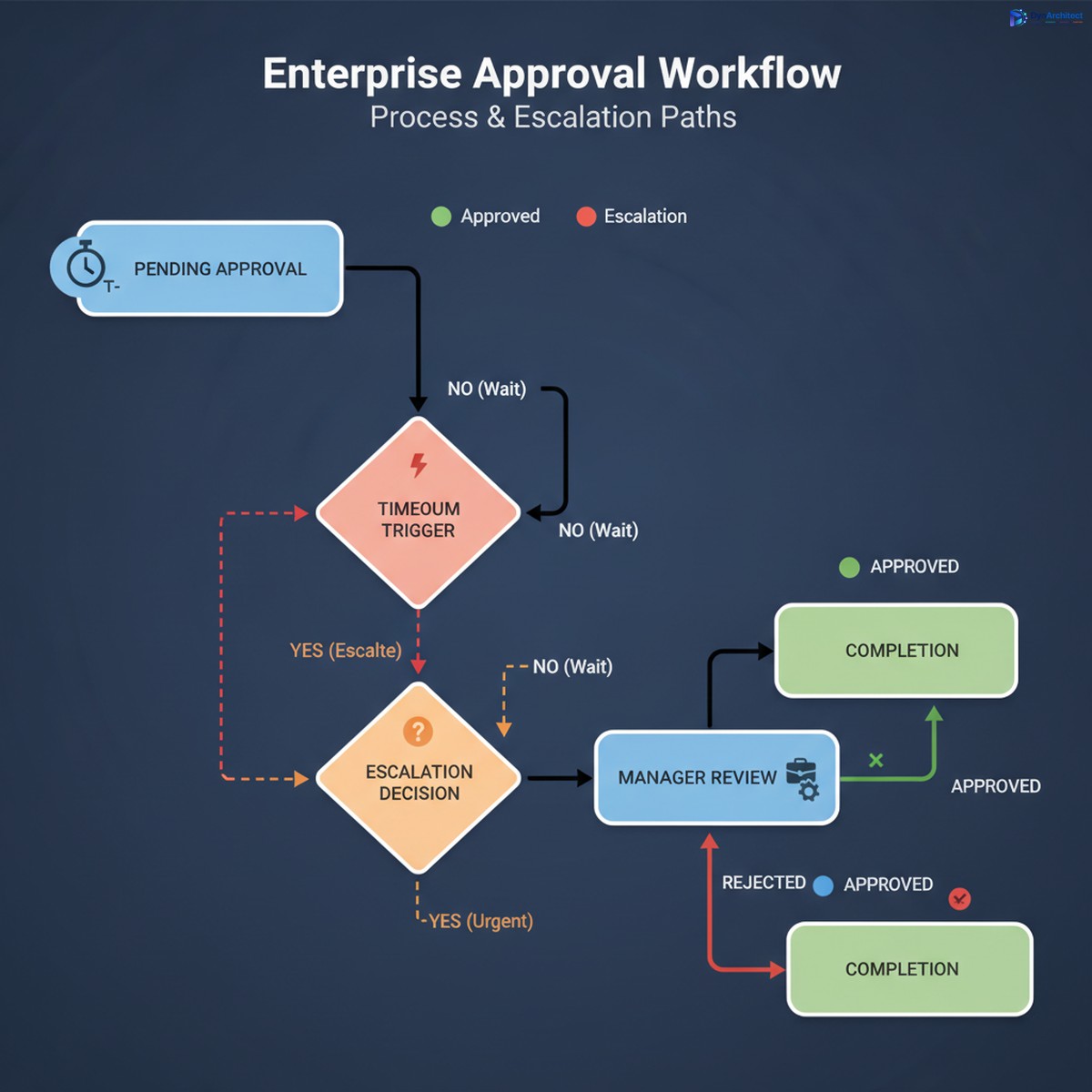
Enterprise approval workflow dashboard with timeout and escalation management

Approval workflows sound simple in theory. Send a request, wait for response, move forward based on outcome. But somewhere between the proof of concept and production reality, approval loops accumulate failures so quietly that six months pass before anyone notices half your approvals never closed, escalations silently vanished, and the finance team is manually reworking approvals that should have auto-completed.

The gap between what you design and what survives in production typically opens in three places: timeouts on waiting responses that get no notification when they expire, escalation logic that triggers but assumes someone is actually paying attention to a hand-passed email, and no mechanism to detect an approval that was submitted but never reached the assigned approver. Each failure is small enough to dismiss as a one-off, but they compound quickly enough that the flow looks broken even when it is technically working.

This isn’t a flaw in Power Automate itself. Approval loops are possible and reliable at scale. But they require specific configuration practices that most documentation glosses over because they fall outside the “happy path” that gets written up in tutorials. The actual production implementation involves setting constraints, monitoring for stuck states, and building reminders and escalations that stay responsive even when people are unavailable.

The Three Failure Modes in Approval Workflows

Power Automate approval workflow state transitions showing timeout and escalation paths

The first and most common failure mode is the timeout without escalation. By default, an approval waits forever for a response. In production, this means a request sits in someone’s inbox for days while they’re in meetings, on vacation, or simply overwhelmed. The approver eventually rejects or approves, but by then the original requestor has stopped watching and other parts of the process have already stalled or errored out. Better practice: set an explicit timeout on the approval action itself. Don’t wait indefinitely. Use a 48 or 72 hour window depending on your business, and when the window closes without a response, trigger an escalation workflow instead of just abandoning the request.

The second failure mode is silent escalation that nobody actually sees. When a primary approver times out, many designs hand off to a backup approver or manager using a simple email notify step. But email is not a reliable alert mechanism inside workflows. The backup approver doesn’t get a red flag in their task management system. The approval request lands in a folder with two hundred other emails. Three days later, the request is still pending, nobody knows why, and you discover by accident that the backup approver never saw it. Better practice: when escalating, create an explicit escalation record in a tracked system, assign it directly to the backup approver through Power Automate’s assignment or Outlook task creation, and log the escalation so you can report on it later.

The third failure mode is the orphaned approval that disappears from tracking. An approver response can fail for reasons outside your control: the response email is misrouted, the approval action times out before the response is processed, or the flow logic that handles the response encounters an error and doesn’t retry. In many cases, there’s no notification that the approval failed, so it simply stays pending forever. The requestor has moved on, the approver thinks they responded, and your audit log shows a request that was submitted but never resolved. Better practice: attach a completion deadline to every approval, separate from the timeout. If the approval has not resolved by that deadline, automatically resolve it with a fallback decision, and send a notification that escalation occurred.

Implementing a Production-Ready Approval Loop in Power Automate

Start with an approval request that includes a deadline. Use a scheduled cloud flow as a failsafe trigger that runs daily or every six hours and checks for approvals that have been pending longer than expected. If one is found, resolve it by creating a comment on the original record and moving the process forward with a fallback decision (typically approval, pending manager review). This sounds like it adds complexity, but it prevents the entire workflow from silently stalling.

The approval action itself should have a timeout set explicitly, measured in hours rather than days. In Power Automate’s approval action settings, set “Time Out In” to a value between 24 and 72 hours depending on your business rhythm. When that timeout is reached, the flow should not just stop. Instead, trigger an escalation workflow that routes to a backup approver, creates an escalation record, and sends an alert through a more reliable channel than email, such as a Teams message or a specific task in a project management system.

The escalation workflow should include logic that detects whether the backup approver is available. If the backup is out of office, the flow should identify an additional escalation level and continue upward. This requires maintaining a clear escalation path in a configuration table or SharePoint list, but it is the only way to ensure approvals don’t stall when a single person is unavailable.

Every approval flow should also log its state transitions to a tracking table. Each time an approval is requested, assigned, escalated, responded to, or timed out, write a record to a SharePoint list or a database table that includes the approval ID, the approver name, the action taken, the timestamp, and the outcome. This log is what makes it possible to audit the flow later, identify patterns of missed approvals, and debug failures when they occur. Without logging, you’re flying blind.

Error Handling and Retry Logic

Approval flows should not fail silently. Every step that might fail, particularly the send approval action itself, should have an error handler configured. If the approval action fails, the flow should retry once or twice before escalating. Use the retry policy built into cloud flows to automatically retry transient failures without adding extra steps.

The response handling section is where most approval flows fail operationally. The flow waits for a response, the response arrives, and then the flow tries to parse it or use it in a downstream action. If the response object is malformed or the downstream action fails, the approval is left in an inconsistent state. Configure error handling around the response processing step, and if it fails, log the failure, notify an administrator, and set the approval to a manual-review state so it can be handled by a human.

Avoiding the Common Pitfalls

Many approval flows make the mistake of embedding the approval timeout in a scheduled flow instead of setting it on the approval action itself. This doubles the complexity and introduces a race condition where the approval might respond after the timeout is checked but before the scheduled flow resolves it. Set the timeout on the approval action, not as a separate scheduled check.

Another pitfall is using the approval owner’s email address to send escalations. Escalations should be routed through the actual escalation workflow, not as emails copied to a backup. If the email approach is used, the escalation has no status tracking and no way to know whether the backup actually saw it.

A third pitfall is assuming that because an approval was sent, it was received. Always add a receipt confirmation step after sending the approval, using a follow-up flow or a scheduled check that verifies the approver’s status. Some organizations send a brief Teams message or Slack notification alongside the approval to ensure the approver knows to check their Outlook task.

Monitoring and Iteration

Once an approval loop is deployed, the real work begins. Run reports monthly on approval cycle times, timeout rates, escalations, and manual overrides. If escalations are happening more than 5% of the time, the timeout is too aggressive or the approval routing is misaligned. If timeouts rarely occur, you may be able to shorten the window to speed up the overall flow.

Track approvers who consistently miss deadlines and consider reassigning their responsibilities. Some approval routing that looks good on paper breaks down in practice because a particular approver is overloaded or rarely checks their tasks.

Approval loops are a reliable part of any organization’s workflow infrastructure when they are designed with production reality in mind. But that reality is messier than most documentation acknowledges. The difference between a working approval flow and one that silently breaks down is attention to timeouts, escalations, and monitoring from the start.

About Routeget Technologies: Routeget specializes in enterprise transformation across the Microsoft cloud ecosystem, including Power Automate automation and workflow optimization. Organizations looking to build production-ready approval systems that scale reliably can engage our consulting team to design governance frameworks, implement monitoring patterns, and optimize approval workflows for their specific operational needs.


#PowerAutomateApprovals #ApprovalWorkflows #EnterpriseAutomation #PowerAutomate #WorkflowOptimization #DynamicsIntegration