

Approval workflows sound simple in theory. Send a request, wait for response, move forward based on outcome. But somewhere between the proof of concept and production reality, approval loops accumulate failures so quietly that six months pass before anyone notices half your approvals never closed, escalations silently vanished, and the finance team is manually reworking approvals that should have auto-completed.
The gap between what you design and what survives in production typically opens in three places: timeouts on waiting responses that get no notification when they expire, escalation logic that triggers but assumes someone is actually paying attention to a hand-passed email, and no mechanism to detect an approval that was submitted but never reached the assigned approver. Each failure is small enough to dismiss as a one-off, but they compound quickly enough that the flow looks broken even when it is technically working.
This isn’t a flaw in Power Automate itself. Approval loops are possible and reliable at scale. But they require specific configuration practices that most documentation glosses over because they fall outside the “happy path” that gets written up in tutorials. The actual production implementation involves setting constraints, monitoring for stuck states, and building reminders and escalations that stay responsive even when people are unavailable.
The Three Failure Modes in Approval Workflows
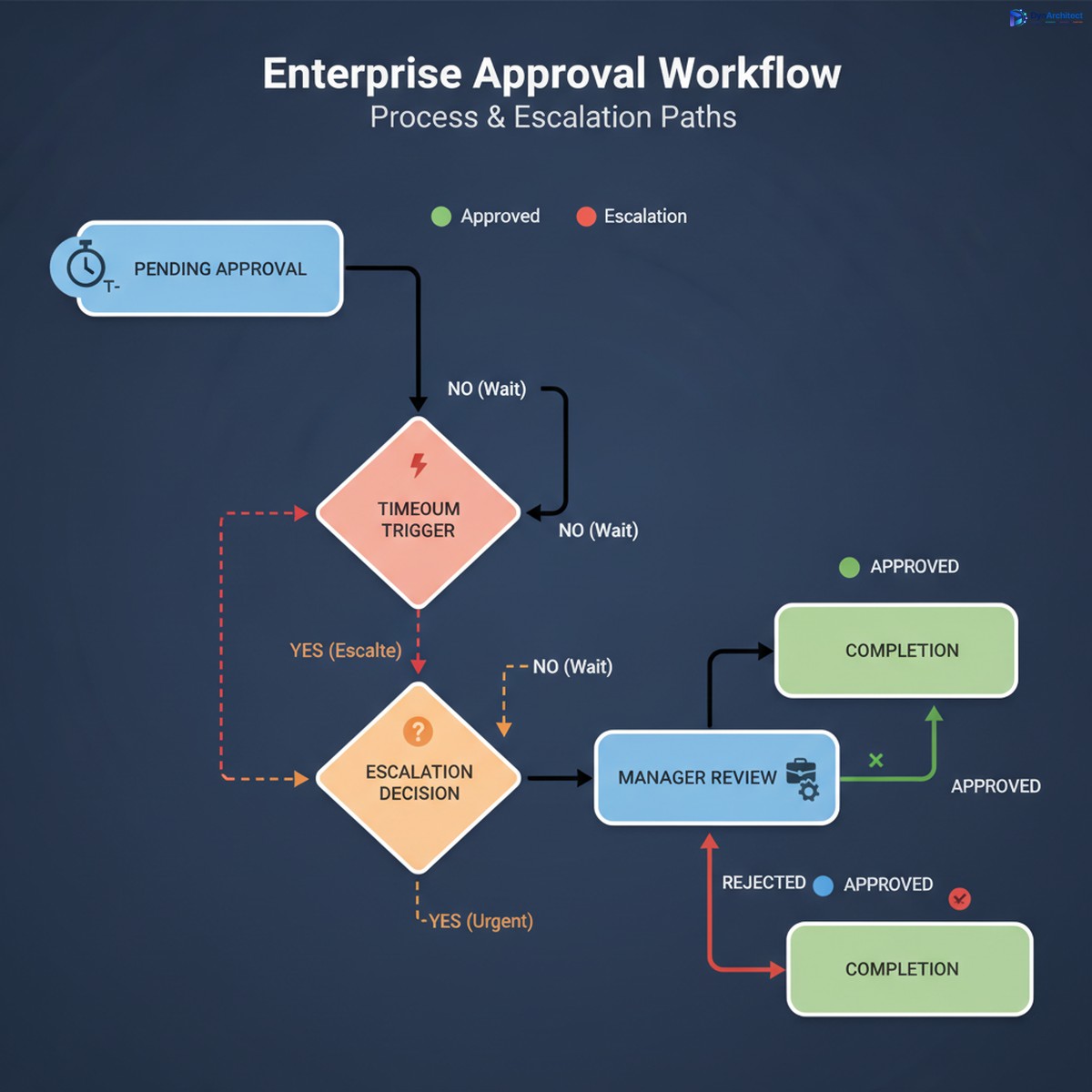
The first and most common failure mode is the timeout without escalation. By default, an approval waits forever for a response. In production, this means a request sits in someone’s inbox for days while they’re in meetings, on vacation, or simply overwhelmed. The approver eventually rejects or approves, but by then the original requestor has stopped watching and other parts of the process have already stalled or errored out. Better practice: set an explicit timeout on the approval action itself. Don’t wait indefinitely. Use a 48 or 72 hour window depending on your business, and when the window closes without a response, trigger an escalation workflow instead of just abandoning the request.
The second failure mode is silent escalation that nobody actually sees. When a primary approver times out, many designs hand off to a backup approver or manager using a simple email notify step. But email is not a reliable alert mechanism inside workflows. The backup approver doesn’t get a red flag in their task management system. The approval request lands in a folder with two hundred other emails. Three days later, the request is still pending, nobody knows why, and you discover by accident that the backup approver never saw it. Better practice: when escalating, create an explicit escalation record in a tracked system, assign it directly to the backup approver through Power Automate’s assignment or Outlook task creation, and log the escalation so you can report on it later.
The third failure mode is the orphaned approval that disappears from tracking. An approver response can fail for reasons outside your control: the response email is misrouted, the approval action times out before the response is processed, or the flow logic that handles the response encounters an error and doesn’t retry. In many cases, there’s no notification that the approval failed, so it simply stays pending forever. The requestor has moved on, the approver thinks they responded, and your audit log shows a request that was submitted but never resolved. Better practice: attach a completion deadline to every approval, separate from the timeout. If the approval has not resolved by that deadline, automatically resolve it with a fallback decision, and send a notification that escalation occurred.
Implementing a Production-Ready Approval Loop in Power Automate
Start with an approval request that includes a deadline. Use a scheduled cloud flow as a failsafe trigger that runs daily or every six hours and checks for approvals that have been pending longer than expected. If one is found, resolve it by creating a comment on the original record and moving the process forward with a fallback decision (typically approval, pending manager review). This sounds like it adds complexity, but it prevents the entire workflow from silently stalling.
The approval action itself should have a timeout set explicitly, measured in hours rather than days. In Power Automate’s approval action settings, set “Time Out In” to a value between 24 and 72 hours depending on your business rhythm. When that timeout is reached, the flow should not just stop. Instead, trigger an escalation workflow that routes to a backup approver, creates an escalation record, and sends an alert through a more reliable channel than email, such as a Teams message or a specific task in a project management system.
The escalation workflow should include logic that detects whether the backup approver is available. If the backup is out of office, the flow should identify an additional escalation level and continue upward. This requires maintaining a clear escalation path in a configuration table or SharePoint list, but it is the only way to ensure approvals don’t stall when a single person is unavailable.
Every approval flow should also log its state transitions to a tracking table. Each time an approval is requested, assigned, escalated, responded to, or timed out, write a record to a SharePoint list or a database table that includes the approval ID, the approver name, the action taken, the timestamp, and the outcome. This log is what makes it possible to audit the flow later, identify patterns of missed approvals, and debug failures when they occur. Without logging, you’re flying blind.
Error Handling and Retry Logic
Approval flows should not fail silently. Every step that might fail, particularly the send approval action itself, should have an error handler configured. If the approval action fails, the flow should retry once or twice before escalating. Use the retry policy built into cloud flows to automatically retry transient failures without adding extra steps.
The response handling section is where most approval flows fail operationally. The flow waits for a response, the response arrives, and then the flow tries to parse it or use it in a downstream action. If the response object is malformed or the downstream action fails, the approval is left in an inconsistent state. Configure error handling around the response processing step, and if it fails, log the failure, notify an administrator, and set the approval to a manual-review state so it can be handled by a human.
Avoiding the Common Pitfalls
Many approval flows make the mistake of embedding the approval timeout in a scheduled flow instead of setting it on the approval action itself. This doubles the complexity and introduces a race condition where the approval might respond after the timeout is checked but before the scheduled flow resolves it. Set the timeout on the approval action, not as a separate scheduled check.
Another pitfall is using the approval owner’s email address to send escalations. Escalations should be routed through the actual escalation workflow, not as emails copied to a backup. If the email approach is used, the escalation has no status tracking and no way to know whether the backup actually saw it.
A third pitfall is assuming that because an approval was sent, it was received. Always add a receipt confirmation step after sending the approval, using a follow-up flow or a scheduled check that verifies the approver’s status. Some organizations send a brief Teams message or Slack notification alongside the approval to ensure the approver knows to check their Outlook task.
Monitoring and Iteration
Once an approval loop is deployed, the real work begins. Run reports monthly on approval cycle times, timeout rates, escalations, and manual overrides. If escalations are happening more than 5% of the time, the timeout is too aggressive or the approval routing is misaligned. If timeouts rarely occur, you may be able to shorten the window to speed up the overall flow.
Track approvers who consistently miss deadlines and consider reassigning their responsibilities. Some approval routing that looks good on paper breaks down in practice because a particular approver is overloaded or rarely checks their tasks.
Approval loops are a reliable part of any organization’s workflow infrastructure when they are designed with production reality in mind. But that reality is messier than most documentation acknowledges. The difference between a working approval flow and one that silently breaks down is attention to timeouts, escalations, and monitoring from the start.
About Routeget Technologies: Routeget specializes in enterprise transformation across the Microsoft cloud ecosystem, including Power Automate automation and workflow optimization. Organizations looking to build production-ready approval systems that scale reliably can engage our consulting team to design governance frameworks, implement monitoring patterns, and optimize approval workflows for their specific operational needs.
#PowerAutomateApprovals #ApprovalWorkflows #EnterpriseAutomation #PowerAutomate #WorkflowOptimization #DynamicsIntegration