
Building Custom APIs in Business Central: A Developer’s Guide to Extending Integration Capabilities

Developer workspace with multiple monitors showing AL code and API documentation

# Building Custom APIs in Business Central: A Developer’s Guide to Extending Integration Capabilities

Business Central’s Power Automate connector and standard OData endpoints cover a wide range of integration needs. For a mid-market company syncing a handful of cloud services, these out-of-the-box capabilities are often sufficient. But the moment you need to expose Business Central data to a proprietary third-party system, enforce complex business logic at the API boundary, or build a consistent integration layer that multiple services depend on, you’ll quickly discover the limits of connector-based approaches.

Custom API endpoints in Business Central provide a way out. Unlike the Power Automate connector, which exposes a read-only view of standard entities, custom APIs let you control exactly what data flows into and out of your system, apply authorization rules at the endpoint level, and define the exact REST semantics your downstream systems expect.

Developer workspace with multiple monitors showing AL code and API documentation

## When Standard Connectors Stop Working

The Power Automate connector and OData endpoints both serve important purposes, but they operate under constraints that custom APIs remove. The Power Automate connector simplifies workflow automation by automatically discovering Business Central tables and fields, but this convenience comes with limited flexibility around response formats, pagination, and error handling. OData endpoints provide more control but still expose the underlying data model directly, which means any future schema changes can ripple into dependent systems.

A custom API, by contrast, sits between your Business Central data layer and external systems. It acts as a versioned contract that isolates external consumers from internal schema changes. If you add a field to a table, rename a lookup, or refactor your data structure, the API’s public interface remains stable as long as the underlying business logic does.
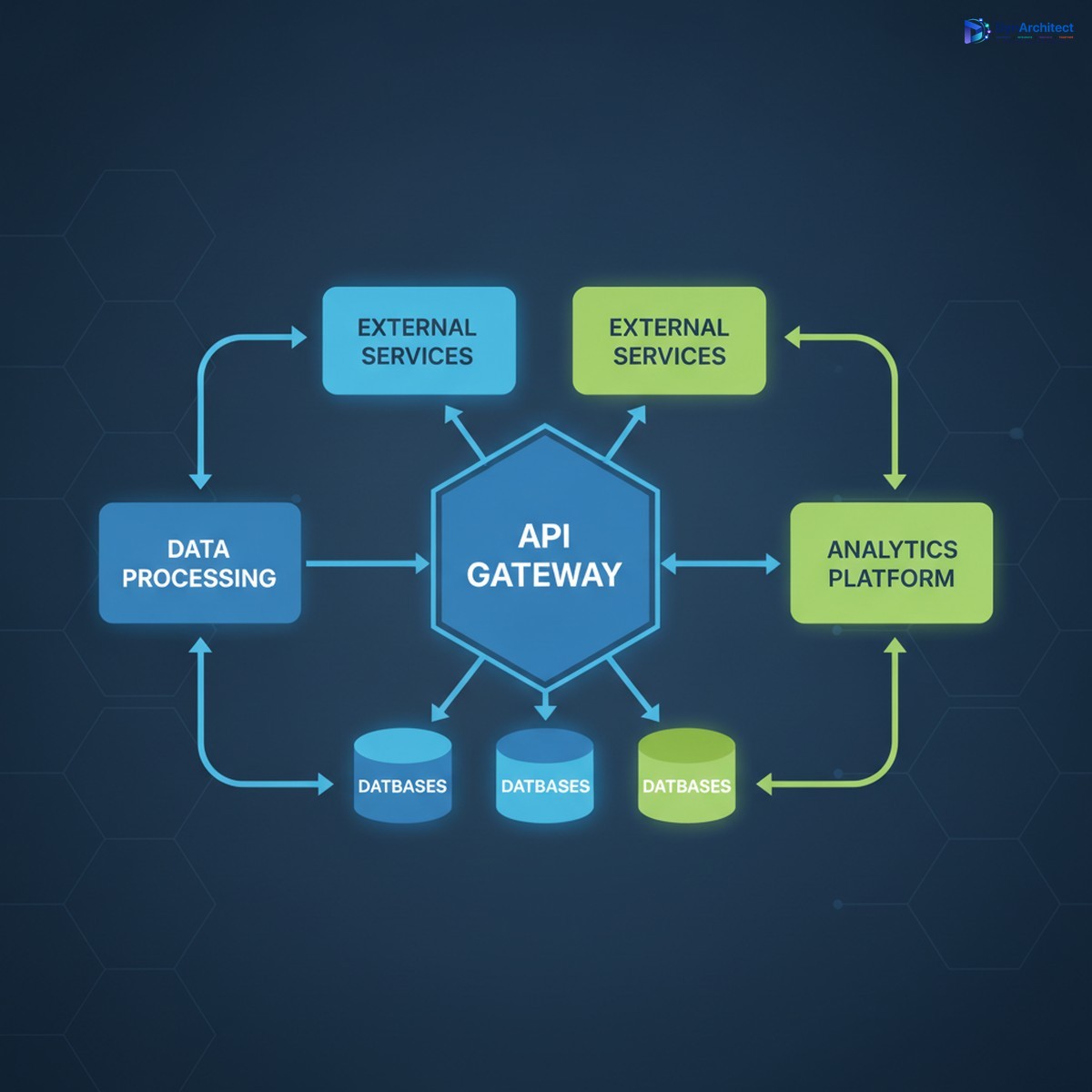
Cloud architecture diagram showing API gateway with multiple integrated systems

## Building Your First Custom API in AL

In Business Central, custom APIs are built using AL, the business application language. The core construct is an API page, which combines the declarative benefits of page design with REST exposure. Here’s the basic pattern:

A custom API page declaration specifies an entity name, which becomes the REST resource path (/api/custom/v1/orders, for example), and then maps AL fields to the underlying Business Central tables. Unlike a traditional page, which is designed for user interaction, an API page focuses on data structure and response shape.

“`
page 50100 OrderAPI
{
PageType = API;
EntityName = ‘Order’;
EntitySetName = ‘Orders’;
…
}
“`

From this declaration, Business Central automatically exposes a REST endpoint. A POST request creates a record, GET retrieves records, PATCH updates, and DELETE removes records, following standard HTTP semantics.

## Controlling the Request Surface

One of the key advantages of building custom APIs is control over the data you expose. You’re not forced to expose every field on a table. Instead, you explicitly declare which fields appear in the API, rename them if needed for compatibility, and define read-only vs. read-write properties.

This becomes essential when integrating with legacy systems or third-party services that expect a specific data structure. If your external partner’s API expects a field called `CustomerOrderID` but Business Central calls it `BillToCustomerNo`, the custom API layer translates between them. This translation insulates both systems from breaking changes on the other side.

Equally important is the ability to hide internal details. Not every field a Business Central user needs to see belongs in an external API. You can expose only order headers, hide internal cost allocations, and require that all modifications go through specific validation routines your custom API enforces.

## Authentication and Authorization at the API Level

All Business Central APIs, custom or standard, authenticate via Azure AD (Entra ID) OAuth. Your calling system requests a token using a service principal or delegated credentials, and Business Central validates the token before allowing access to the API.

However, custom APIs let you layer additional authorization logic on top of Azure AD authentication. You might check that the caller’s organization ID matches the data they’re requesting, or enforce that only a specific external system can modify orders within certain value ranges.

This can be implemented in the page’s trigger code, before any data is returned or modified:

The API code can inspect the authenticated caller’s identity, query Business Central tables to determine if access is allowed, and reject the request with a specific HTTP status and error message if not.

## Versioning Your API Without Breaking Clients

Over time, your API contract will evolve. You’ll add new fields, deprecate old ones, or change the structure of nested objects. Custom APIs handle this through explicit versioning.

The standard approach is to include a version number in the API path itself: `/api/custom/v1/orders` vs. `/api/custom/v2/orders`. This allows you to support legacy clients on the v1 endpoint while new clients use v2. You might even run both endpoints simultaneously, pointing v1 to an older page definition and v2 to an updated one, ensuring that existing integrations don’t break.

Alternatively, you can deprecate individual fields by keeping them in the response but marking them in documentation as no longer updated. This gives calling systems time to migrate to newer fields before you remove them entirely.

## Testing and Monitoring Your Custom API

A custom API is only as good as its reliability in production. Before deploying to a live environment, test the API endpoints thoroughly using tools like Postman or custom scripts that simulate your downstream systems. Verify that create, read, update, and delete operations all work as expected, that error responses include meaningful messages, and that rate limits and timeouts behave predictably.

Once deployed, monitor the API’s health through Business Central’s telemetry and logging infrastructure. Log each API call with caller identity, HTTP status, and execution time, so you can diagnose performance issues or unexpected errors after the fact. If an external system starts making requests at an unusual rate or fails repeatedly, your logs will reveal it quickly.

## A Practical Example: Order Sync Between Business Central and an ERP Partner

Consider a scenario where your organization uses Business Central as the primary system of record for financial data, but integrations with a warehouse management system (WMS) require real-time updates whenever an order ships. A custom Order API exposes the minimum fields the WMS needs: order number, line items, quantities, and ship-to address.

The API page includes trigger code that, on insert or modify, validates that quantities are non-negative, ship-to addresses are complete, and the order type is supported by the WMS integration. If validation fails, the API returns a 400 error with a message explaining what was missing or invalid. This prevents the WMS from receiving half-formed orders that it cannot process.

When the order is ready to ship, the WMS sends a PATCH request to the same endpoint with shipping carrier and tracking information. The custom API updates Business Central with those details, logs the update for audit purposes, and returns a 200 response confirming success.

## Common Pitfalls to Avoid

One frequent mistake is exposing too much data in a single API endpoint. A page that joins ten tables and returns dozens of fields might seem comprehensive, but it becomes slow, difficult to version, and hard to secure. Instead, design lean APIs that return only what the caller needs, and create separate endpoints for different use cases.

Another pitfall is inadequate error handling. If your custom API hits an exception in AL code and doesn’t catch it, the response will be a generic 500 error with a stack trace. External callers have no idea what went wrong. Always wrap business logic in try-catch blocks, translate exceptions into meaningful HTTP status codes (400 for bad requests, 409 for conflicts, 422 for validation failures), and include a human-readable error description.

Finally, don’t overlook throttling. If you don’t set rate limits on your API endpoints, a poorly behaved client or a denial-of-service attack can consume all available Business Central resources. Use Business Central’s built-in throttling policies to cap the number of requests per minute per caller.

## Moving Forward

Custom APIs transform Business Central from a closed system to an extensible platform. They enable you to control the shape of your data, enforce business rules at the boundary, and maintain a stable contract with external systems even as your internal architecture evolves.

If you’re currently wiring integrations together with Power Automate flows and OData endpoints, custom APIs might be the missing piece that gives you the control and clarity your architecture needs. At Routeget Technologies, we’ve helped organizations design and implement custom API strategies that streamline integrations and reduce long-term maintenance burden.

—

**#BusinessCentralAPIs #CustomIntegration #ALDevelopment #BusinessCentralExtensibility #APIDesign #IntegrationArchitecture #DevelopmentPatterns**

#BusinessCentralAPIs #CustomIntegration #ALDevelopment #BusinessCentralExtensibility #APIDesign #IntegrationArchitecture #DevelopmentPatterns


Why Business Central Webhook Notifications Go Missing, and How to Architect Around It

Solutions architect reviewing a network integration dashboard representing Business Central webhook notifications

A Business Central integration that sailed through testing starts dropping records three weeks into production, and nobody can explain why until someone finally opens the subscription logs and finds a long trail of silent deletions. This is one of the more common failure patterns solution architects run into once Business Central webhook notifications move from a sandbox demo into a live integration carrying order confirmations, inventory adjustments, or approval status changes. The webhook model itself is well documented, but a handful of its operational rules are easy to miss during initial build-out, and missing them is exactly what causes integrations to degrade quietly instead of failing loudly where someone would notice.

The Handshake Most Implementations Get Half Right

Every Business Central webhook subscription begins with a validation handshake, and it is stricter than most developers expect on first pass. When a subscription is created against the v2.0 API, Business Central sends a request to the registered notification URL with a validationToken appended as a query parameter. The receiving endpoint has to echo that exact token back in the response body with an HTTP 200 status, and this is not a one-time formality. The same handshake fires again every time the subscription is renewed, which matters because Business Central webhook subscriptions expire after three days by design. There is no way to extend that window through configuration; the only supported pattern is issuing a PATCH request to the subscription resource before expiration, which triggers a fresh validation round trip.

Teams that build their receiver as a lightweight Azure Function often hit trouble here because of cold starts. If the function has scaled to zero and the handshake response takes more than a few seconds to come back, Business Central treats it as a failed validation and the subscription is never established or renewed. Keeping the receiver warm, or at minimum handling the validation response as the very first branch in the function before any other logic runs, removes most of the flakiness teams report during initial rollout.

Why Business Central Webhook Notifications Stop Coming, With No Error in Sight

The part of the design that catches experienced integration teams off guard is what happens after a notification actually fails to deliver. Business Central will retry a failed notification for up to 36 hours, but only if the subscriber’s endpoint responds with HTTP 408, 429, or something in the 5xx range. Any other response code, including a 400 or a 404 that might result from a temporary bug in the receiver’s routing logic, causes the subscription to be deleted immediately with no further retry and no separate alert. From the Business Central side, everything looks fine because the delivery attempt technically completed. From the integration’s side, notifications simply stop arriving for that entity, and unless someone is actively polling the subscriptions endpoint to check for unexpected deletions, the gap can persist for days before anyone notices missing sales order lines or unsynced customer records downstream.

This is the mechanism behind the scenario at the top of this article. A receiver that returns a 500 during a genuine outage is actually in a safer position than one that returns a 400 because of a malformed payload edge case, since the 500 at least buys 36 hours of retry attempts while the underlying issue gets fixed. Teams that want resilience here should treat any unhandled exception in the receiver as a 5xx rather than letting it bubble up as a generic error page, and should build a scheduled check that compares active subscriptions against the expected list so a silent deletion gets flagged rather than discovered by a downstream data gap weeks later.

Developer workstation showing an abstract data synchronization diagram representing a Business Central API integration

The Records Webhooks Quietly Refuse to Support

Before troubleshooting delivery issues, it is worth confirming the subscribed entity was ever eligible for webhooks in the first place, since Business Central will let a subscription be created against certain API pages that then never fire a single notification. Webhooks are not supported for API pages built on temporary tables, for pages where the OData key consists of more than one field or is otherwise composite, for system tables above table number 2000000000, for anything exposed as an API type query rather than an API type page, or for the Job Queue Entry table specifically. An API page built for a custom extension needs ODataKeyFields set to a single field, typically SystemId, or the subscription will appear to register successfully while silently never delivering anything.

Document-style entities carry their own nuance worth designing around. A change to a sales invoice line does not generate its own notification; instead, Business Central notifies against the parent sales invoice header when any of its lines change. Integrations that subscribe only at the header level and assume line-level granularity will miss the specific detail of what changed and need to follow up with a GET request against the full document to reconstruct it, which is standard practice anyway since webhook payloads never carry the actual record data, only a pointer to it and the type of change that occurred.

Batching, Delay, and the Events That Let You Tune Both

Business Central does not fire a notification the instant a record changes. There is a default 30 second delay built in after the first change to a watched entity, which exists to let a burst of related changes settle before anything is sent. If more than 1,000 records change within that delay window, Business Central collapses the individual notifications into a single collection notification rather than sending a thousand separate payloads, which is a sensible default for bulk imports but can surprise a downstream system expecting one notification per record during something like a large data migration or batch order release.

Both behaviors are adjustable for AL developers who need finer control. The delay interval can be modified through the OnGetDelayTime integration event in the API Webhook Notification Mgt. codeunit, and the threshold that triggers collection-style batching can be adjusted through OnGetMaxNumberOfNotifications in API Webhook Notification Send. Extensions that need near-real-time delivery for smaller entities, such as a status flag that a warehouse floor system needs to react to within a couple of seconds, are reasonable candidates for tightening the delay through these events; extensions dealing with high-volume header tables like sales lines are usually better served leaving the defaults alone and designing the receiver to handle collection notifications gracefully.

Designing for the Gaps: A Hybrid Pattern That Actually Holds Up

Given all of the above, the honest engineering position is that Business Central webhooks were never meant to be the sole source of truth for keeping two systems in sync, and Microsoft’s own documentation is candid that delivery is not guaranteed. Subscriptions can lapse from a missed renewal, a receiver bug can trigger an unannounced deletion, and network conditions on either side can drop a notification outright. The pattern that holds up in production combines the two mechanisms rather than choosing one: webhooks handle the fast path, giving near-real-time propagation for the vast majority of changes, while a scheduled reconciliation job, often running hourly or nightly depending on data volume, polls the same API endpoints using a last-modified timestamp filter to catch anything the webhook layer missed.

This is a small amount of extra engineering for a meaningful reliability gain, and it also solves the operational blind spot described earlier: the reconciliation job can double as the subscription health check, verifying that expected subscriptions still exist and re-registering anything that was unexpectedly deleted. Teams that skip this step tend to discover the gap only when a customer or finance team member notices a record that should have synced and did not, which is a far more expensive way to find the same bug.

What This Means for Your Next Integration Build

None of these behaviors are hidden or undocumented, but they are scattered across API reference pages that most teams read once during initial scoping and rarely revisit once the integration is live. The practical takeaway is to treat the three-day renewal window, the narrow retry code list, the unsupported table types, and the batching thresholds as design inputs from day one rather than issues to debug after the fact. At Routeget Technologies, the integrations that hold up longest in production are the ones where the reconciliation safety net was scoped alongside the webhook subscriptions from the start, not bolted on after the first silent data gap got noticed. Getting that sequencing right the first time is usually the difference between an integration the business trusts and one that quietly needs babysitting.


#BusinessCentralAPI #WebhookReliability #ERPIntegration #DynamicsBusinessCentral #ALDevelopment #EnterpriseIntegration